Define the permissions matrix
The exact value of every permission, role by role: the eight organization permissions, the workspace permission matrix, and the rules of the Roles & permissions screen.
In brief
This page is authoritative on values, at both levels: the eight organization permissions and their value for the Admin, Power user and User roles, then every workspace permission and its default setting for the Power user and User roles, then the rules of the screen that replaces the latter. How the model works (role levels, resolution order, overrides) is explained in Understand the permissions model.
Access: Administrator. Only organization administrators open the Administration → Roles & permissions screen.
Organization permissions
The organization role — the one you set from Members — carries eight tenant-level permissions. Unlike workspace permissions, they cannot be configured: no matrix and no override touches them, they are attached to the role.
| Permission | What it opens | Admin | Power user (power_user) | User (user) |
|---|---|---|---|---|
| Access the administration | The Administration section (/admin) and its screens | Yes | No | No |
| Manage members | Invite, change an organization role, remove a member | Yes | No | No |
| Create a workspace | Create a workspace in the organization | Yes | No | No |
| View usage | The Administration → Usage screen, for the whole tenant | Yes | Yes | No |
| Manage API keys | The tenant's provider keys and routing policies | Yes | No | No |
| Configure white-label | The instance's branding — Enterprise edition | Yes | No | No |
| Configure identity and SSO | The identity providers — Enterprise edition | Yes | No | No |
| Manage billing | Reserved: no surface uses it today | Yes | No | No |
A single line separates the Power user from the User at this level: viewing usage. Everything else the words "Power user" suggest — managing the team, skills, connectors — happens at the workspace level, in the matrix below. So a Power user of the organization who is a Power user of no workspace has, in practice, exactly one extra screen compared to a User.
The factory presets for workspace permissions
The table lists the values Brume ships with. The Roles & permissions screen replaces them for your organization; an individual override can then refine them member by member.
| Category | Permission | Power user (power_user) | User (user) |
|---|---|---|---|
| Team | View team | Yes | Yes |
| Team | Manage team | Yes | No |
| Team | Intervene in chats | Yes | No |
| Team | Switch chat model | Yes | No |
| Memory | View memory | Yes | No |
| Memory | Edit memory | Yes | No |
| Skills | View skills | Yes | Yes |
| Skills | Edit skills | Yes | No |
| Skills | Manage starter actions | Yes | No |
| Connectors | View connectors | Yes | Yes |
| Connectors | Edit connectors | Yes | No |
| Connectors | Connect connectors | Yes | No |
| Usage & budget | View usage | Yes | No |
| Usage & budget | Edit budget | No | No |
| Settings & appearance | Edit appearance | No | No |
| Settings & appearance | Edit settings | Yes | No |
| Settings & appearance | Edit API key | No | No |
| Workspace | Delete workspace | No | No |
| Workspace | Transfer workspace | No | No |
| Files | View files | Yes | Yes |
| Files | Create files | Yes | Yes |
| Files | Edit files | Yes | No |
| Files | Delete files | No | No |
The Power user preset opens day-to-day workspace management. The User preset keeps read access to the team, skills, connectors and files, plus file creation.
The Admin role does not appear in the matrix: an organization administrator holds every permission in every workspace.
The Roles & permissions screen
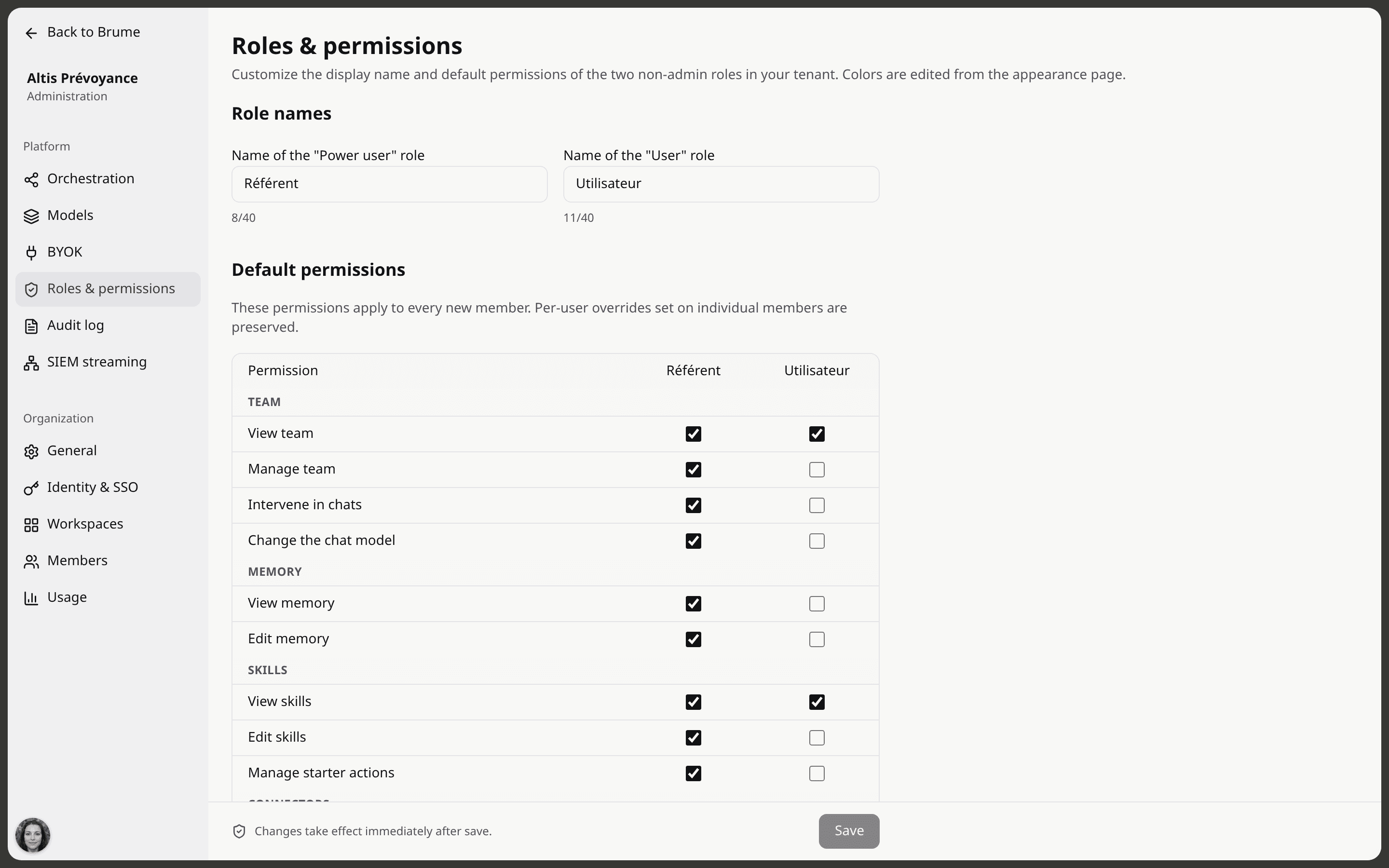
| Screen element | Rule |
|---|---|
| Power user role name | Required, 40 characters maximum. |
| User role name | Required, 40 characters maximum. |
| Permission toggles | One value per role and per workspace permission. |
| Save | Applies the matrix to every member without a matching override. |
Individual overrides already recorded remain untouched. If every permission of a role is disabled, Brume asks for confirmation before saving.