Manage workspace members
Settings → Team: assemble a workspace's team, set each member's role, open a right to a single person.
In brief
A workspace's Team tab serves three needs: bringing someone into this workspace, setting their Power user or User role, and adjusting one permission for one person without touching the others. The role decides the default rights; the override handles the exception.
The tab lives in the workspace's Settings panel (gear icon, then the Team tab; the URL retains ?panel=settings&tab=team). The member list is visible to every member of the workspace; management actions require the "Manage team" permission, granted to the Power user by default.
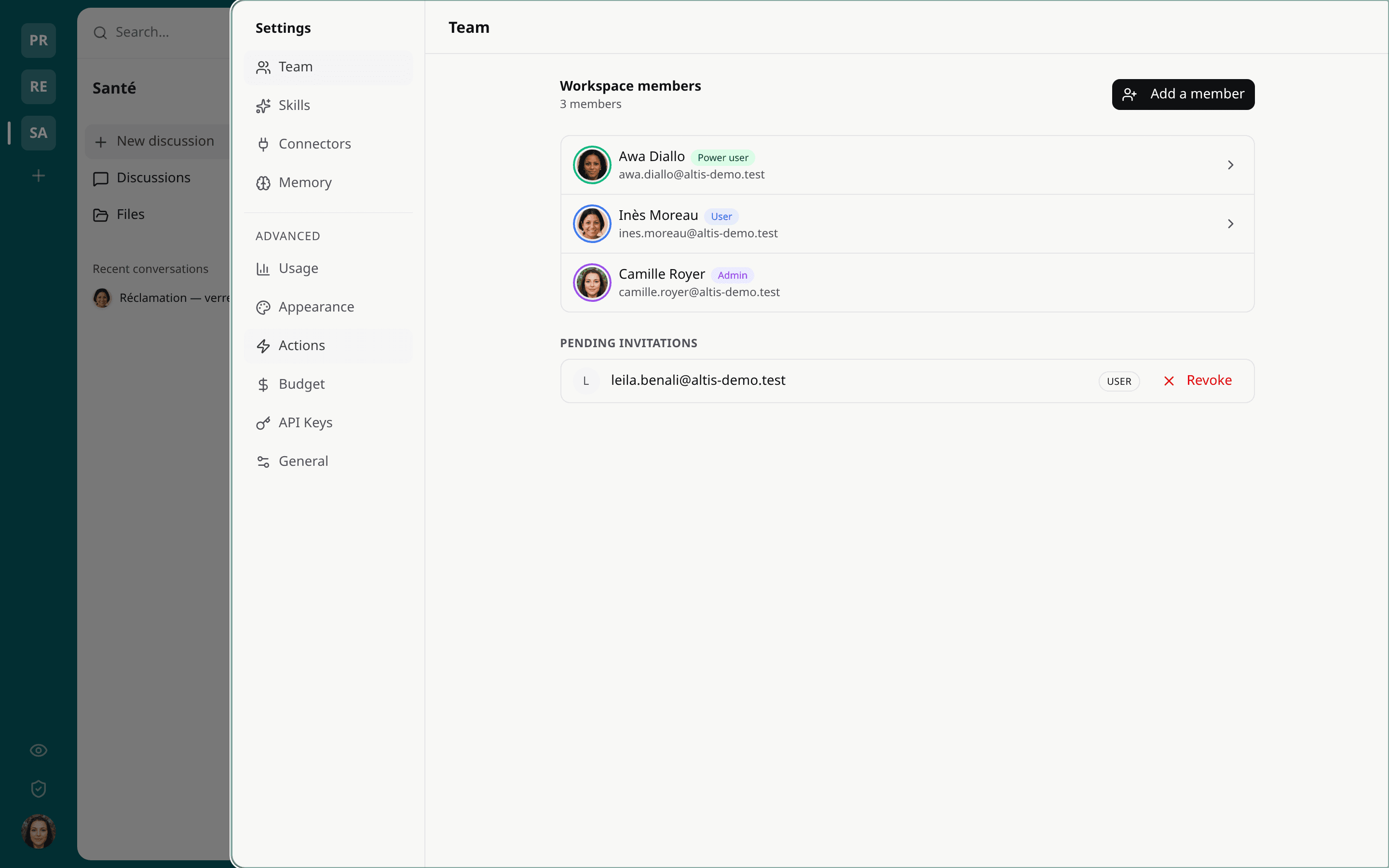
Access: Referent. The CAN_MANAGE_TEAM permission, granted to the Power user role by default, displays management actions under Settings → Team.
The Admin badge marks a member managed at organization level: their card cannot be edited here. To act on an administrator, go through Administration → Members. The two role levels are explained in Understand the permissions model.
Invite a person into the workspace
Belonging to the organization opens no workspace: this is where a person enters this one, with the role they will hold in it.
Select Add a member. The invitation drawer opens.
Search for the person or enter their email address, then choose their role in this workspace: Power user or User.
Confirm. The person appears under "Pending invitations" until they accept, then joins the member list with the chosen role. A pending invitation can be revoked from the same list.
Change a member's role
The role applies the workspace's permission preset in one move: it is the right gesture when the person's place changes, for instance when a User takes over running the workspace.
Select the member's card. An edit drawer opens.
Under Role, choose Power user or User.
Select Save. The member's badge reflects the chosen role.
Changing the role clears that member's permission overrides and restores the new role's default set. This is an intended effect of the model: an override is defined against a role.
Adjust a permission for a single person
The override grants or withdraws one right for one specific member, without touching the organization's matrix or the other members. It is the tool for exceptions: if the same adjustment repeats across half the team, adjust the matrix instead.
Open the member's card and locate the matrix below the role selector.
Enable or disable only the necessary permissions. Each departure from the role carries the Custom badge, and the member list flags the card with a "+N permissions" badge.
Select Save. To clear all of a member's overrides, use Reset to default, then save.
What a member without management rights sees
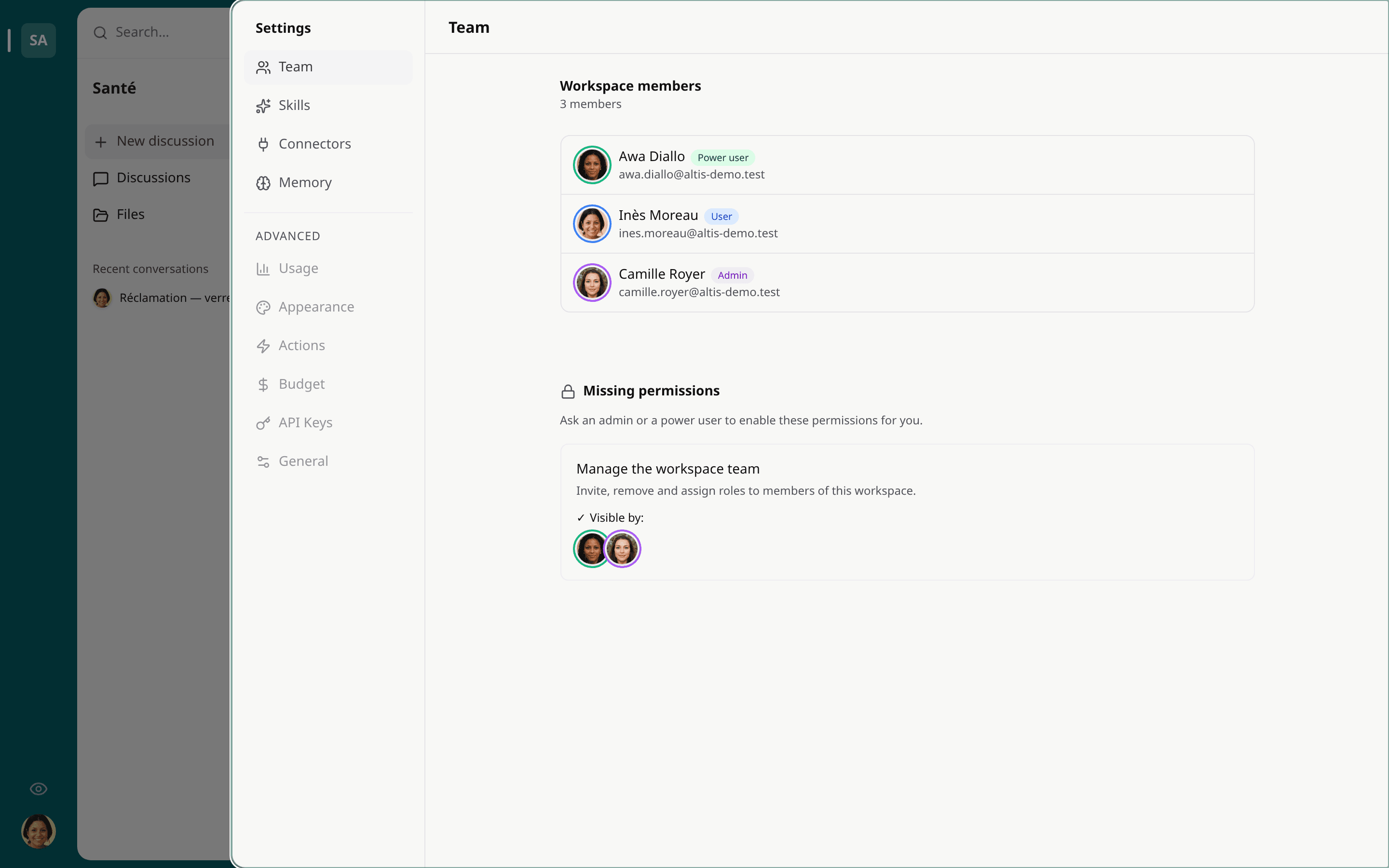
The member list remains visible to every member of the workspace: everyone sees who makes up the team and each person's role. Management actions are hidden, and a "Missing permissions" box names the people entitled to act, so the request goes to the right place.
Going further
Invite organization members
Administration → Members: bring someone into the organization, set their role, hand over an invitation link, track and revoke.
Define the permissions matrix
The exact value of every permission, role by role: the eight organization permissions, the workspace permission matrix, and the rules of the Roles & permissions screen.