Create starter actions
Settings → Actions: compose the prompt shortcuts on the new conversation screen, and replace the ones Brume generates from skills.
In brief
The new conversation screen always offers shortcuts: with none defined, Brume generates them from the workspace's skills. The Actions tab is where you replace them with your own — your usage examples, grouped by theme, optionally linked to a skill.
The tab lives in the workspace Settings panel (gear icon, ADVANCED section, Actions tab; the URL keeps ?panel=settings&tab=actions). Editing requires the "Manage starter actions" permission, granted by default to the Power user and the administrator.
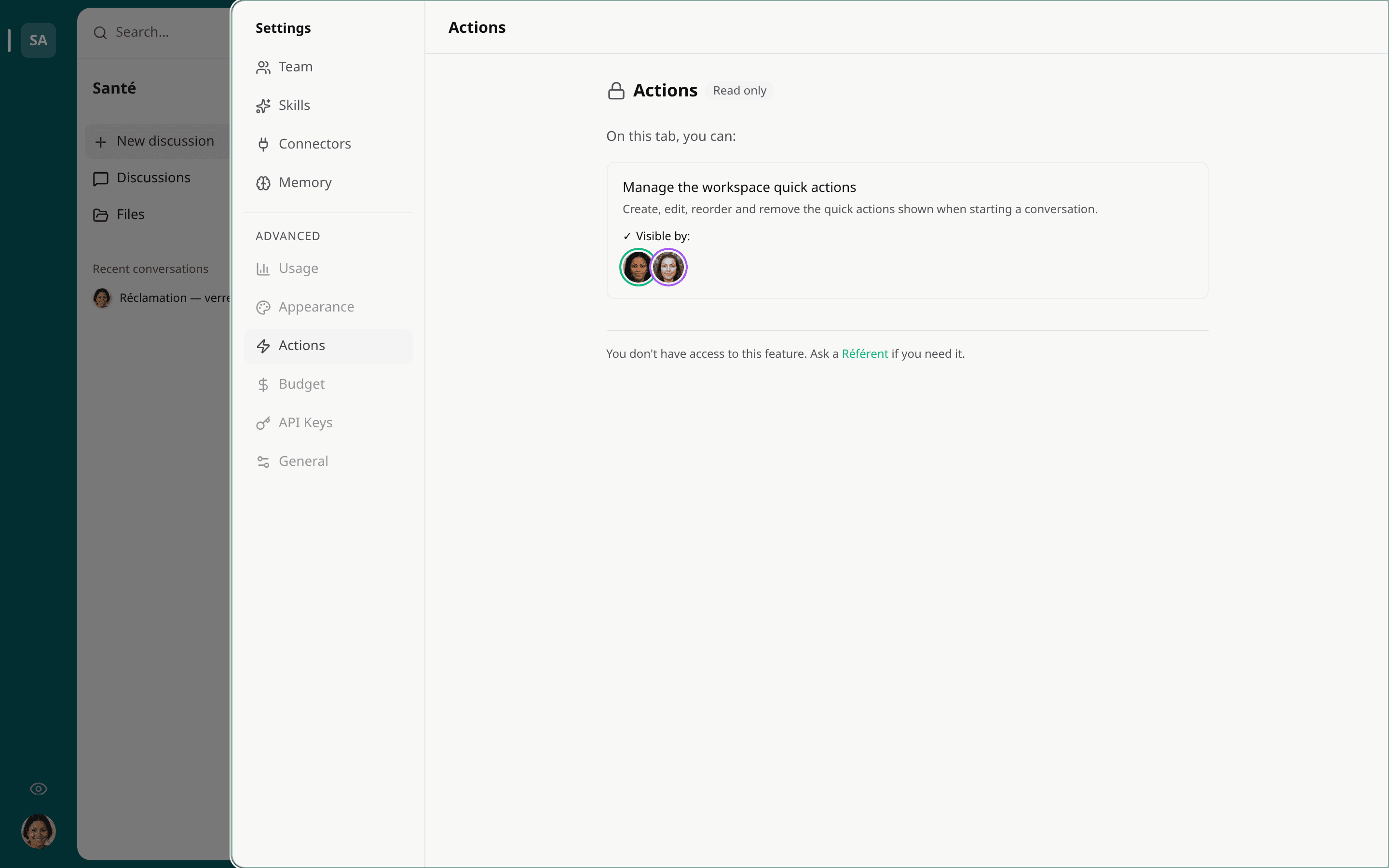
Access: Referent. The CAN_MANAGE_STARTER_ACTIONS permission, granted by default to the Power user role, opens quick action editing; the User sees the tab read-only.
Where the default shortcuts come from
A fresh workspace has no custom action, and yet the new conversation screen isn't empty: Brume derives up to four shortcuts from the skills allowed in the workspace, in alphabetical order. Each carries the skill's name, and prefills the composer with its first command.
Those shortcuts can't be edited and don't show up in the editor. They follow one simple rule, and that rule is the answer to "how do I get rid of them":
as soon as a single custom action exists, every generated shortcut disappears. Your actions don't add to theirs, they replace them. Symmetrically, deleting your last custom action brings them back.
So there is no "hide the generated actions" gesture: creating the first action is that gesture. And if you want no shortcut at all, there is no such empty list — the only empty state possible is a workspace with no allowed skill.
Create an action
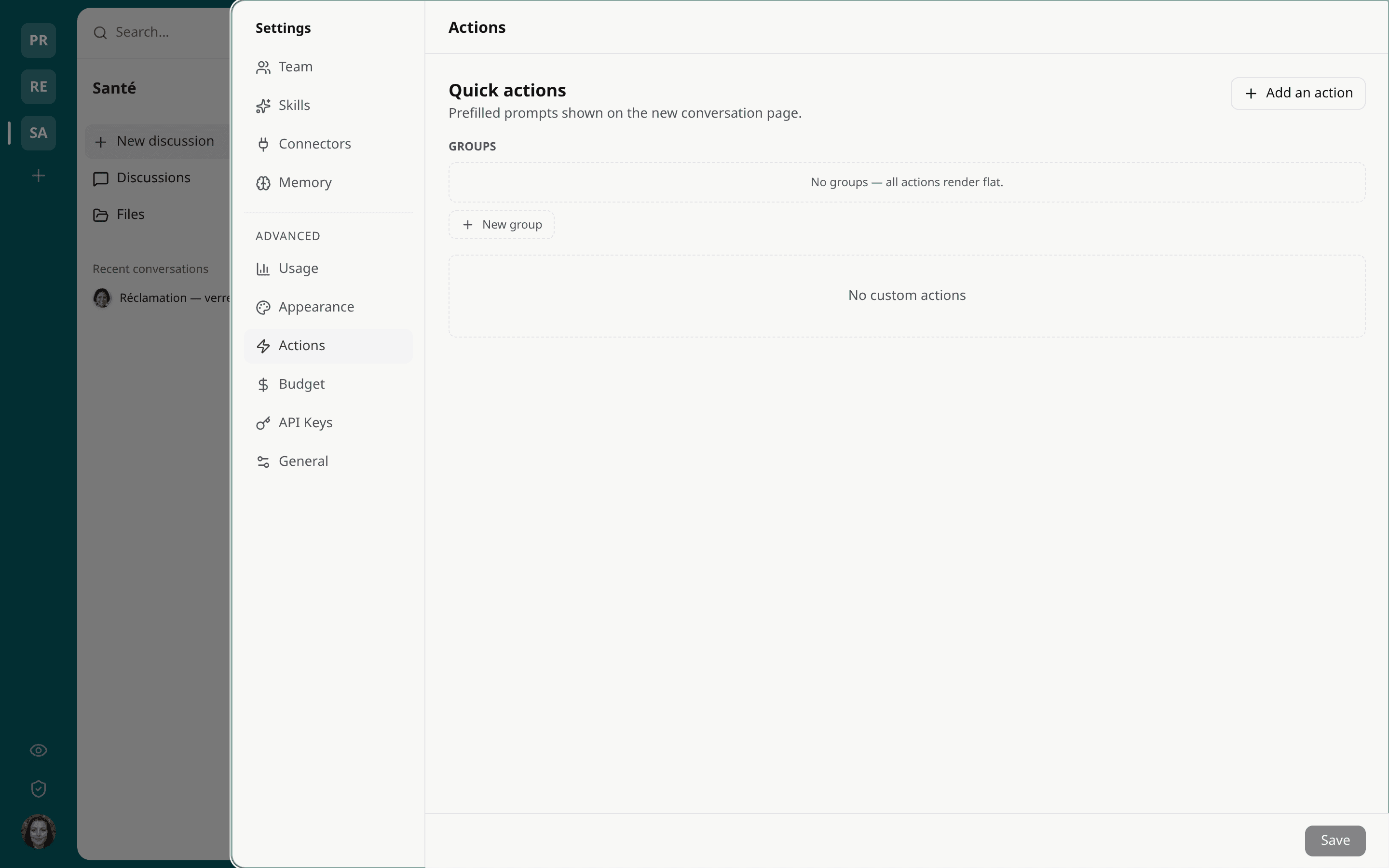
Click Add an action. A blank card appears at the top of the list.
Enter the action title: this is the button label the user will see.
Fill in the prompt: the text injected into the composer on click. Write a concrete usage example, not a general instruction — this is what the reader will send as-is if they don't complete it.
Click Save. The "Unsaved changes" note disappears once the save is confirmed.
Description, group and skill are optional. Linking a skill prefills the prompt with its command (/intake , for instance), which you then complete with your example.
An action's fields
| Field | Role | Values |
|---|---|---|
| Action title | Button label on the new chat screen | Free text |
| Description | Context line under the title | Free text, optional |
| Group | Theme to file the action under | "No group" or an existing group |
| Skill | Skill linked to the shortcut | "No skill (free-form action)" or a skill allowed in the workspace |
| Prompt | Text injected into the composer on click | Free text, multi-line |
If the skill linked to an action is removed from the workspace or can't be found, the action is hidden on the new chat screen but stays in the editor, flagged under the Skill field. That's deliberate: you can restore the skill or unlink the action without having lost your work. Note though — a hidden action still counts, so the generated shortcuts don't come back.
File actions by theme
Without a group, all actions render flat. Groups become useful once the list outgrows the handful of shortcuts you take in at a glance.
Click New group, name it, and pick its icon (optional).
On each action concerned, open the Group field and select it.
Click Save.
The up and down arrows order groups among themselves, and actions within their group; the arrow is disabled in first or last position. The bin deletes. Deleting a group doesn't delete its actions: they become "No group" again.
None of this — order, grouping, deletion — is persisted until you click Save.
What a member without the manage permission sees
The tab stays reachable, read-only: a panel describes the capability and names the roles that hold it, so the request goes to the right place.