Put Brume in your organization's colors
Set your organization's logo, favicon, and colors, adjust them workspace by workspace, and revert to Brume branding.
In brief
Branding is set once for the whole organization from Administration → Appearance: logo, favicon, colors. Each public workspace can then override its logo and colors; left empty, it inherits the organization's. Everything saves on its own, and comes off as easily as it goes on.
Your colleagues spend their days inside Brume. Branding is what makes them recognize their own house from the login screen onward, rather than ours — and what lets a workspace carrying a client's brand show that client's colors instead of yours.
Hence two levels, in this order. The organization carries the default identity, the one everybody sees. A workspace can depart from it, for its logo and two colors only. The favicon is set at the organization level alone: a browser shows only one per domain.
Access: Administrator. The Administration → Appearance screen requires the can_manage_white_label permission and the Enterprise edition. Inside a workspace, the Appearance tab requires can_edit_appearance.
Brand the organization
Open Administration → Appearance (/admin/appearance). You get four sections: Logo, Favicon, Colors, Role colors.
Set the logo. Click "Change logo", then pick your file. A crop window opens: frame it, confirm. The logo replaces Brume's in the rail and on the login page.
Set the favicon. Upload an icon, or type a site address in the https://mysite.com field and click Fetch from website: Brume looks for the icon the page declares, and falls back to its /favicon.ico when the page declares none. You get "No favicon found on this site." when nothing is reachable.
Set Ambiance and Signal. Ambiance is the background visible around the interface and behind the rail; Signal is the color of interactive elements — buttons, rail icons. The interface repaints as you pick.
Assign a color per role, if you want one. It applies to the avatars and badges of Admin, Power user, and User, and nowhere else.
There is no Save button: a color is sent one second after your last adjustment, a logo the moment you confirm the crop. The "Saved" toast is the confirmation.
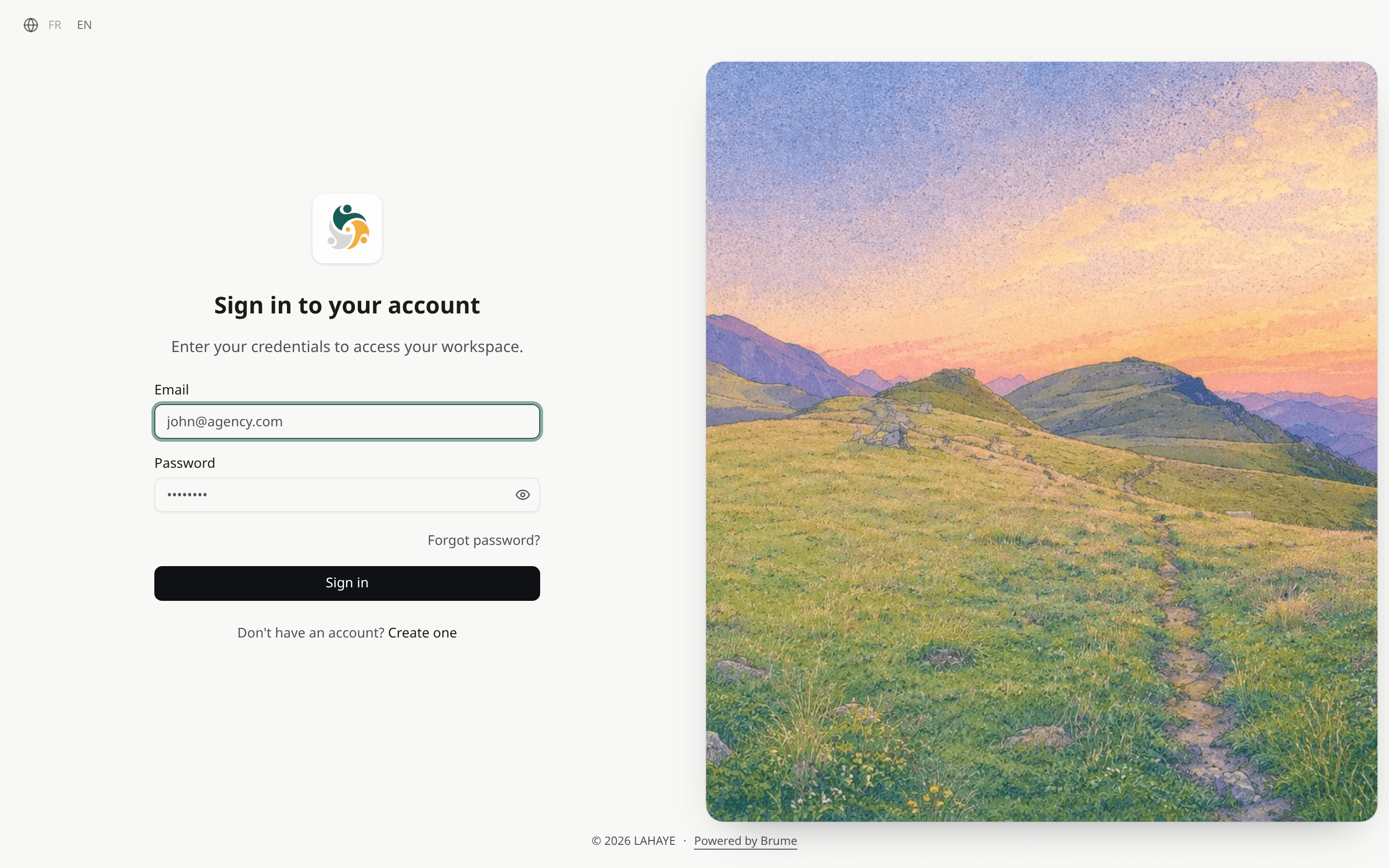
The result applies to the whole organization, including the login page of your subdomain.
What makes a good result
The one thing to know before choosing your file: whatever you upload, Brume produces a square 256 × 256 pixel PNG, flattened onto a white background. Cropping produces an image, not your original file.
Three consequences, and they decide which file to prepare:
- Transparency is lost. A logo designed for a dark background will end up on a white square. Supply the version meant for light backgrounds.
- SVG buys you nothing over PNG. It is accepted, but it is rasterized at crop time: vector crispness does not survive. Start from an image at least 256 px on each side.
- The shape is square. A wide logo will be cropped or ringed with white. Prefer the monogram to the full signature.
Accepted formats: PNG, JPEG, or SVG, 2 MB maximum. The favicon also accepts .ico, and is not cropped — it is served as-is, so give it a square icon directly.
Adjust a workspace
A public workspace can carry its own identity: open its Settings → Appearance (Advanced section).
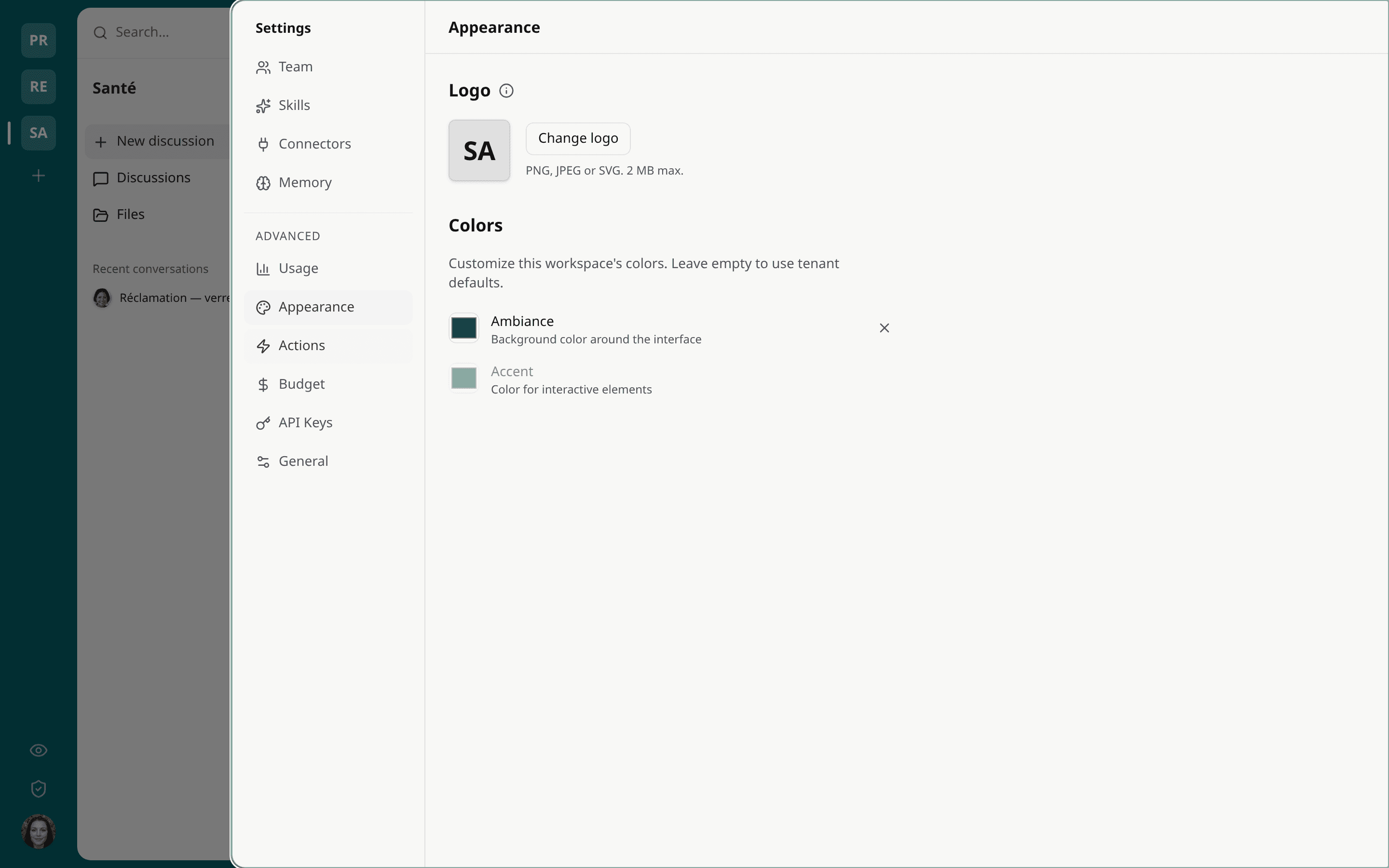
You get the workspace logo — its initials by default — and two colors, Ambiance and Accent. As long as a color is empty it stays dimmed and the workspace inherits the organization's. Same image rules, same automatic saving as at the organization level.
A private workspace has none of these settings: the tab reads "Appearance is managed globally" and links to Administration → Appearance. A private workspace has a single member; giving it a distinct brand would have nobody to speak to.
Revert to Brume branding
Nothing is permanent, and each level comes off separately.
| What you want to remove | How | Result |
|---|---|---|
| The organization logo, or favicon | Remove logo button next to the preview | Brume's identity returns there |
| An organization color | Set it back to its original value (below) | The Brume theme returns |
| A workspace logo | Remove logo button in the Appearance tab | The workspace falls back to its initials |
| A workspace color | The × at the end of the row | The workspace inherits the organization color |
The original values, should you want to rebuild the Brume theme by hand:
| Setting | Default value |
|---|---|
| Ambiance (organization) | #363431 |
| Signal (organization) | #D97234 |
| "Admin" color | #A855F7 |
| "Power user" color | #10B981 |
| "User" color | #3B82F6 |
Who can do what
Organization branding belongs to the Enterprise edition. In the Community edition the entry stays in the menu, but the screen offers no setting:
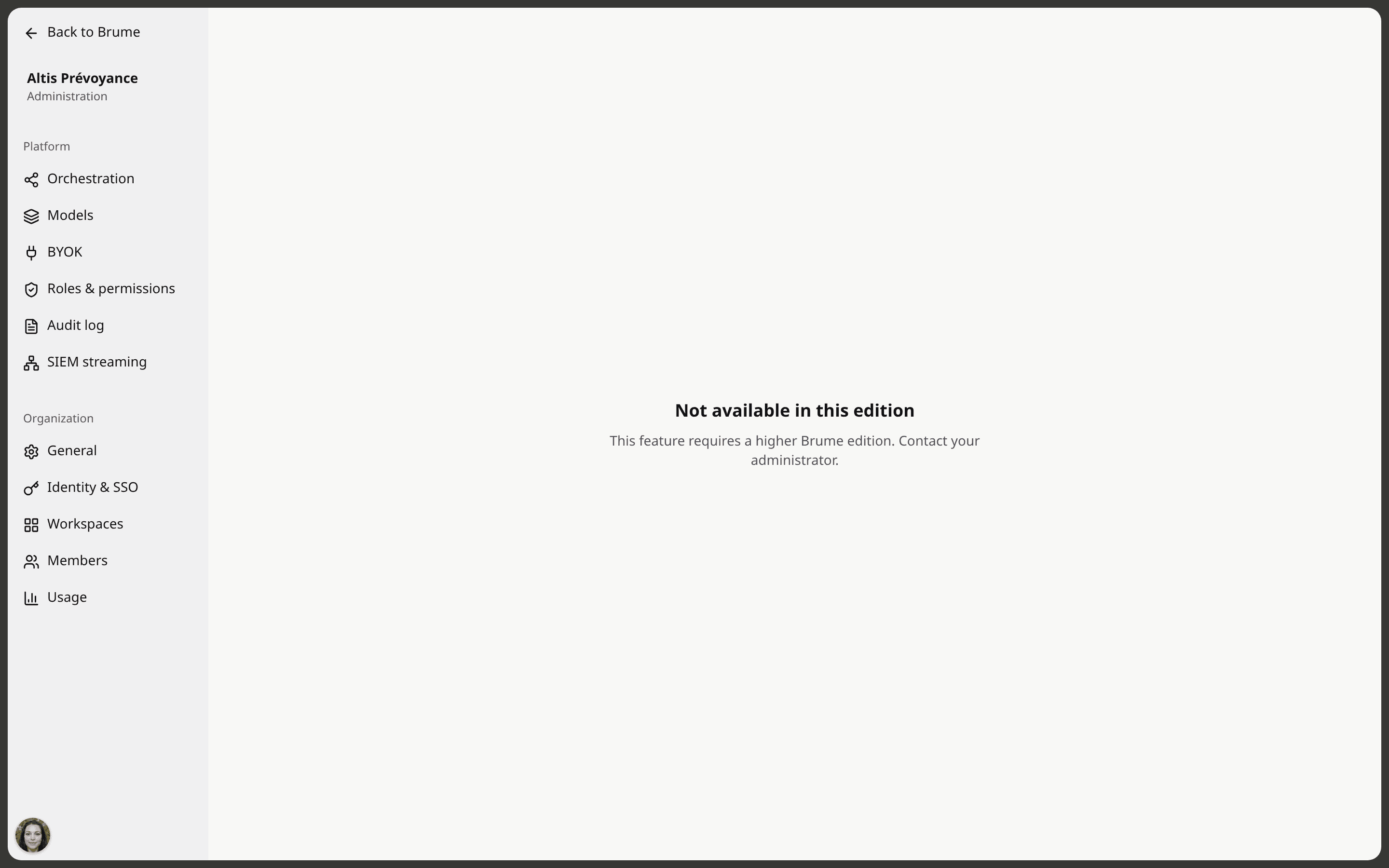
Branding already in place keeps being served either way — the restriction covers changing it, never displaying it.
At workspace level, the can_edit_appearance permission opens the tab. It is off out of the box for both Power user and User, which does not make it an Admin exclusive: your organization can grant it to a role, or to a single person, from the permission matrix. Without it, the tab stays read-only and says who to ask — "You don't have access to this feature. Ask a Power user if you need it.", with whatever name the role carries in your organization.
Going further
Create starter actions
Settings → Actions: compose the prompt shortcuts on the new conversation screen, and replace the ones Brume generates from skills.
Name the organization and the agent
The Administration → General screen: the tenant name, the brand name the agent uses in its system prompts, and what each one changes.