Set your personal preferences
Choose your profile photo, the first name Brume calls you by, and the interface language, from the Personal settings panel.
In brief
Three settings are yours alone: your profile photo, the first name Brume uses to address you, and the interface language. They follow you from one workspace to the next, whatever your role, and change nothing for other members.
These three settings live in the Personal settings panel, which opens from the user menu — your avatar at the bottom of the sidebar — then My preferences. Everyone can reach it: unlike workspace settings and administration, this panel depends on no permission.
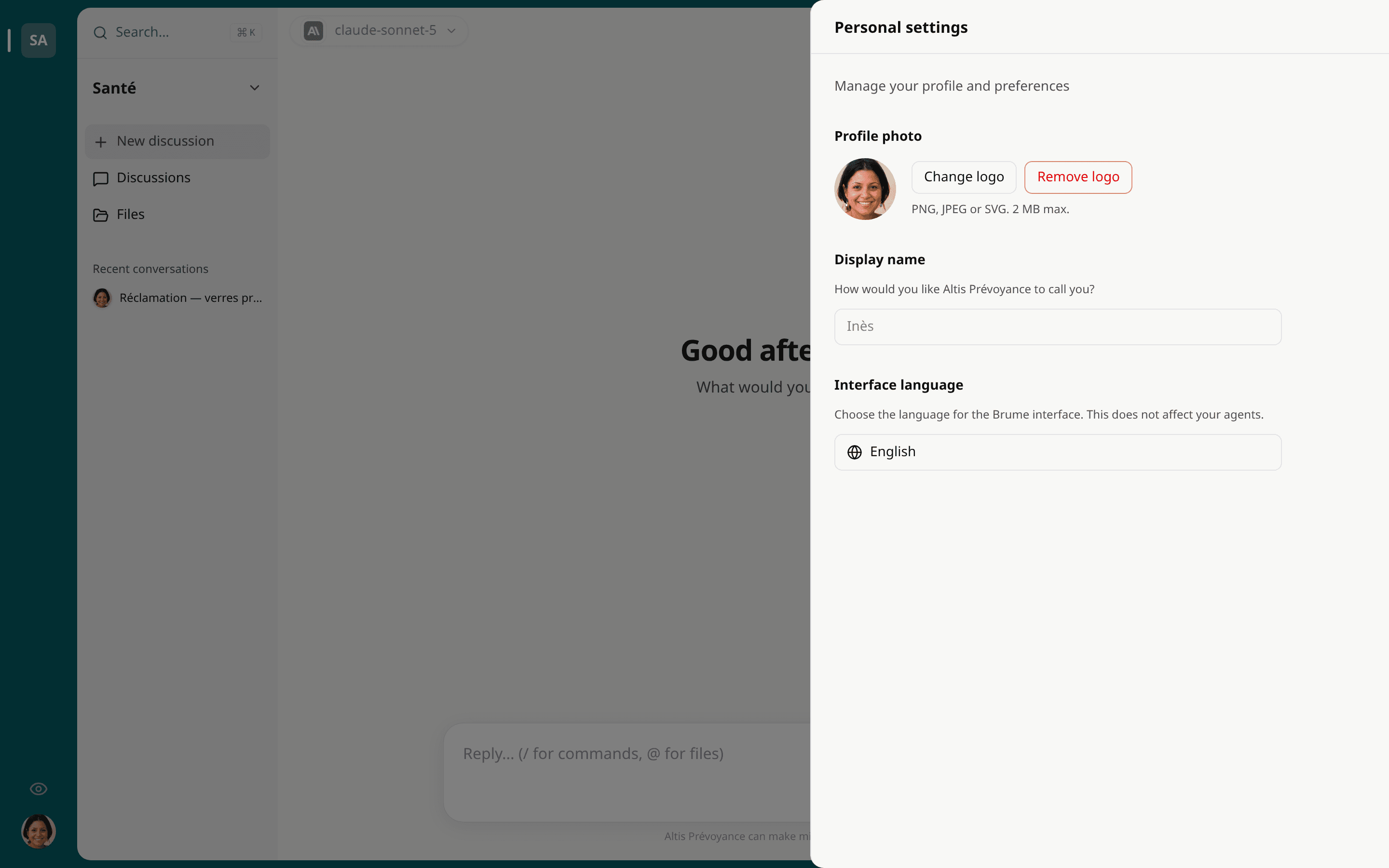
Choose your profile photo
This is the only surface in the product that carries your avatar: the image then appears in the sidebar and everywhere other members come across you, team lists included.
Click Change logo and pick an image: PNG, JPEG or SVG, 2 MB at most.
Adjust the framing in the window that opens, then confirm. Saving is immediate.
To go back to the default avatar, click Remove logo.
Tell Brume what to call you
The display name is the name Brume uses in its replies. It helps when your account first name isn't the one people use day to day; left empty, Brume simply falls back to the account first name.
Type the name you want in the Display name field.
Do not look for a button: one second after you stop typing, a Saved notice confirms it went through.
Change the interface language
The Interface language selector offers Français and English, and the change takes effect at once, without reloading the page.
It only covers Brume's display — menus, labels, buttons. Your agents keep replying according to their own settings: switching language here does not switch theirs.
What you cannot set here
The full account name is fixed at sign-up and cannot be changed from the product. Neither can the password: it is reset through Forgot password?, on the sign-in screen.
The workspace Account page (/your-workspace/account) repeats the display name and the language, without the profile photo. The Personal settings panel remains the complete surface.