Set a budget on a workspace
Set a daily or monthly LLM spending ceiling on a workspace, with its alert threshold.
In brief
The Budget tab in Settings sets a daily ceiling, a monthly one, or both, each with its alert threshold. A ceiling that is reached interrupts the workspace's agents until the next period begins: read what happens when the budget is reached before switching it on.
A budget is not a statement of intent: it is a switch. As long as spending stays under the ceiling, nothing changes. At the alert threshold, the team is warned in the conversation. At the ceiling, the workspace's agents stop. So set the figure knowing what it cuts.
Set the ceiling
Open the workspace Settings panel, then the Budget tab.
Switch on the Monthly budget, the Daily budget, or both. The fields appear, pre-filled at 50.00 and 5.00 dollars.
Enter the Limit (USD) the workspace may spend over the period, then the Alert (%) threshold at which to warn. 80% leaves time to react.
Click Save. The budget takes effect immediately, and a progress bar shows the share already spent with its status: OK, Warning, or Exceeded.
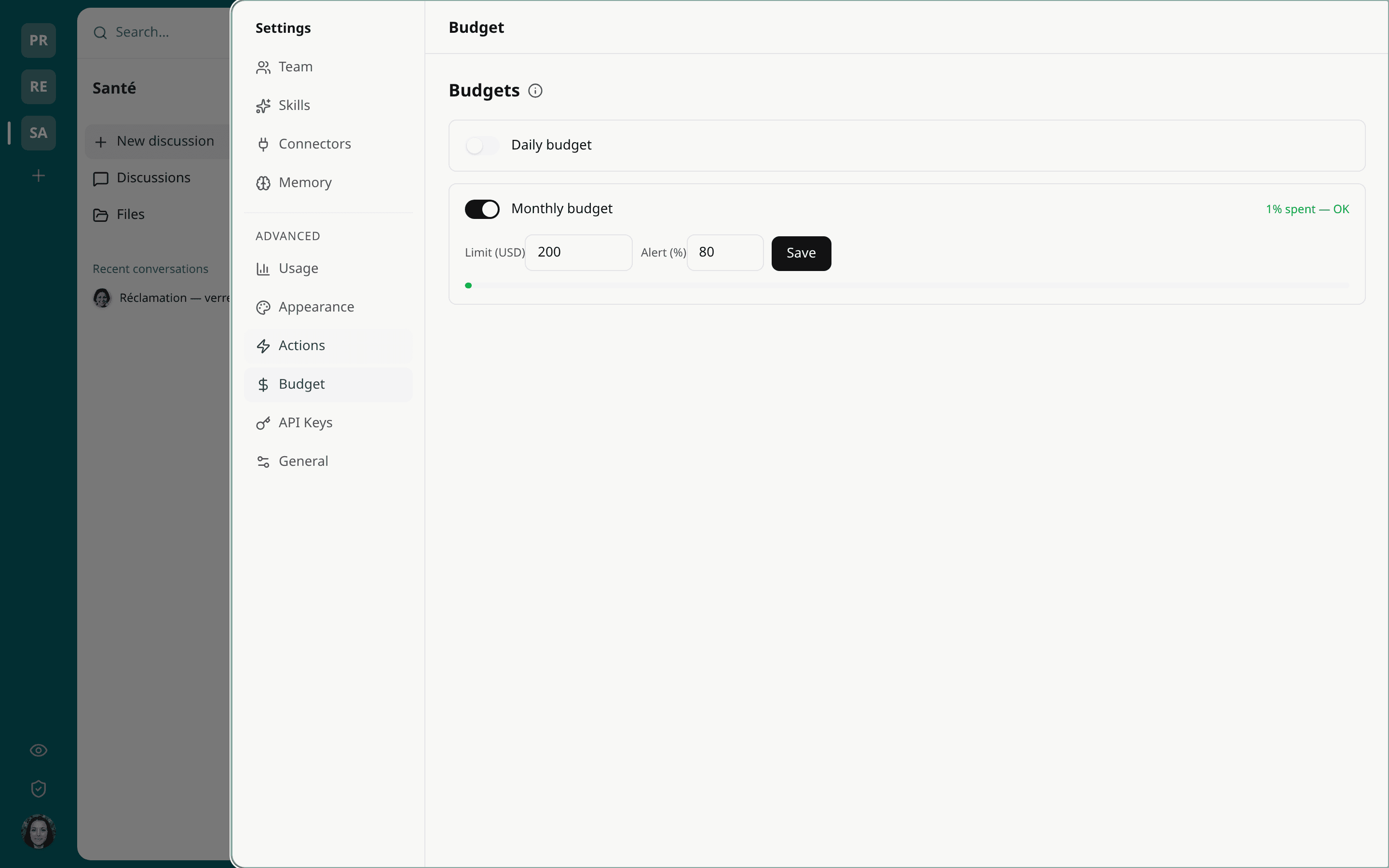
| Field | What it sets | Accepted values |
|---|---|---|
| Switch | Activates the budget. Switching it off deletes the saved rule. | On, off |
| Limit (USD) | The spending ceiling over the period. | Dollar amount above 0, to the cent |
| Alert (%) | The share of the ceiling that triggers the warning. | Integer from 1 to 99. The field offers 80 |
The two budgets are independent: a workspace can carry a tight daily ceiling and a loose monthly one. Whichever is reached first stops the agents.
The ceiling is expressed in dollars because model prices are. It covers this workspace's model calls, and those only: metered services outside the LLM do not eat into it.
Who can set it
Access: Administrator. The can_edit_budget permission is granted to the administrator by default. The organization's matrix can open it to a workspace role.
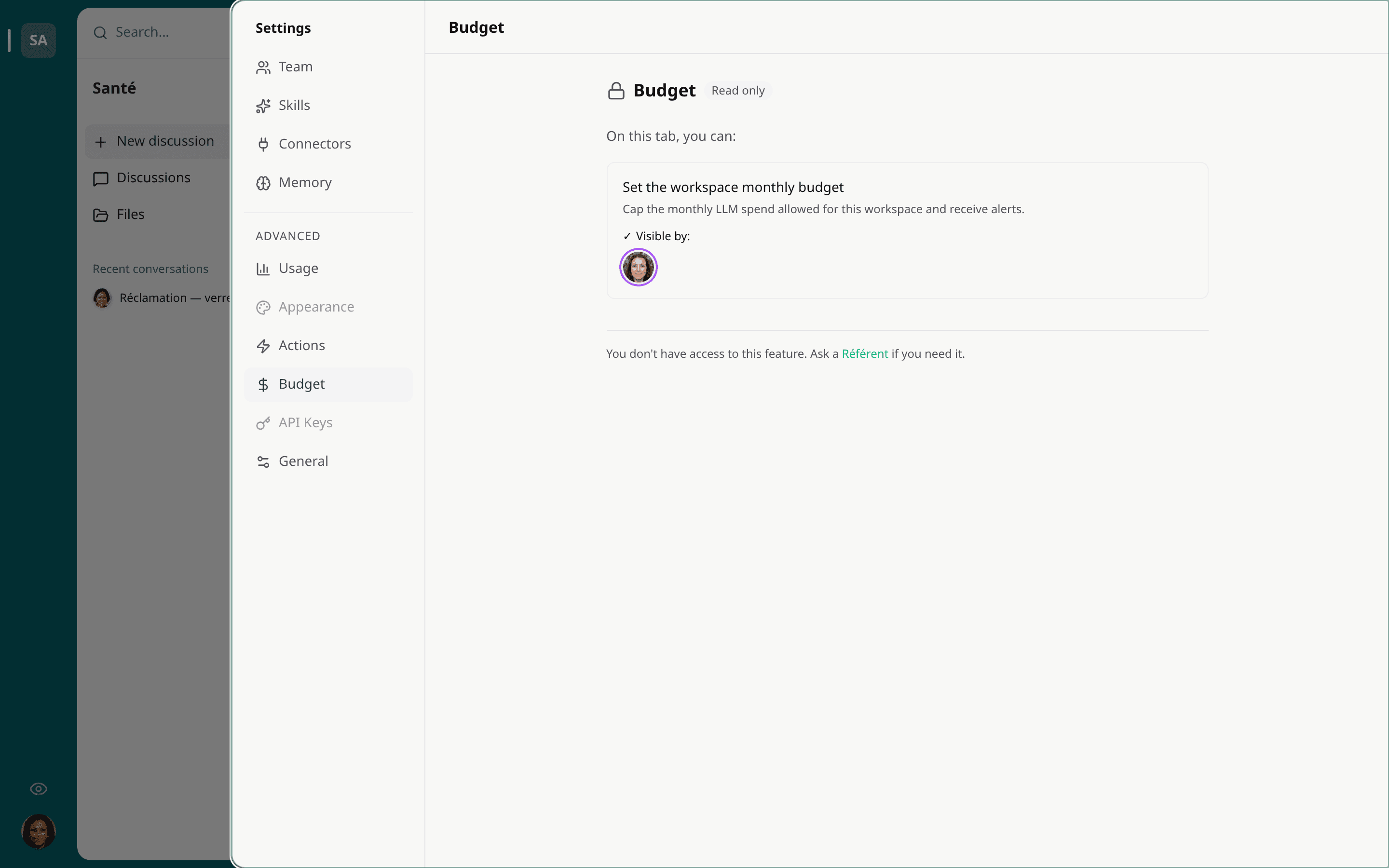
Without that permission, power user and user alike open the same tab and find a read-only explainer: what the budget allows, and whom to ask. No field is shown.
Going further
Track the whole organization's spending
The Administration → Consumption screen: the tenant's consolidated LLM spending, and its breakdown workspace by workspace.
What happens when the budget is reached
The two moments Brume checks a workspace budget, what the team sees at the alert threshold and then at the ceiling, and when the counter restarts.