Configure workspace settings
The General tab of the Settings panel: rename the workspace, read its address — and what deletion and transfer, reserved to the administrator, really entail.
In brief
The General tab carries the workspace's identity: its name, editable by the Referent; its language and address (slug), fixed at creation; and the two sensitive operations — deletion and transfer — reserved to the administrator. This page also says what a transfer carries over, removes, and revokes.
The tab lives in the workspace's Settings panel, under the ADVANCED group (the URL keeps ?panel=settings&tab=general). What it governs fits in three facts:
- The name is the only editable field — for anyone holding the "Edit settings" permission, granted by default to the Referent. The change applies immediately in the interface.
- The language and the address (slug) can be read but not changed: both are set when the workspace is created, and the screen says so ("Set when the workspace was created. Cannot be changed.").
- Delete and transfer are denied by default to both the Referent and the User: only the administration holds them.
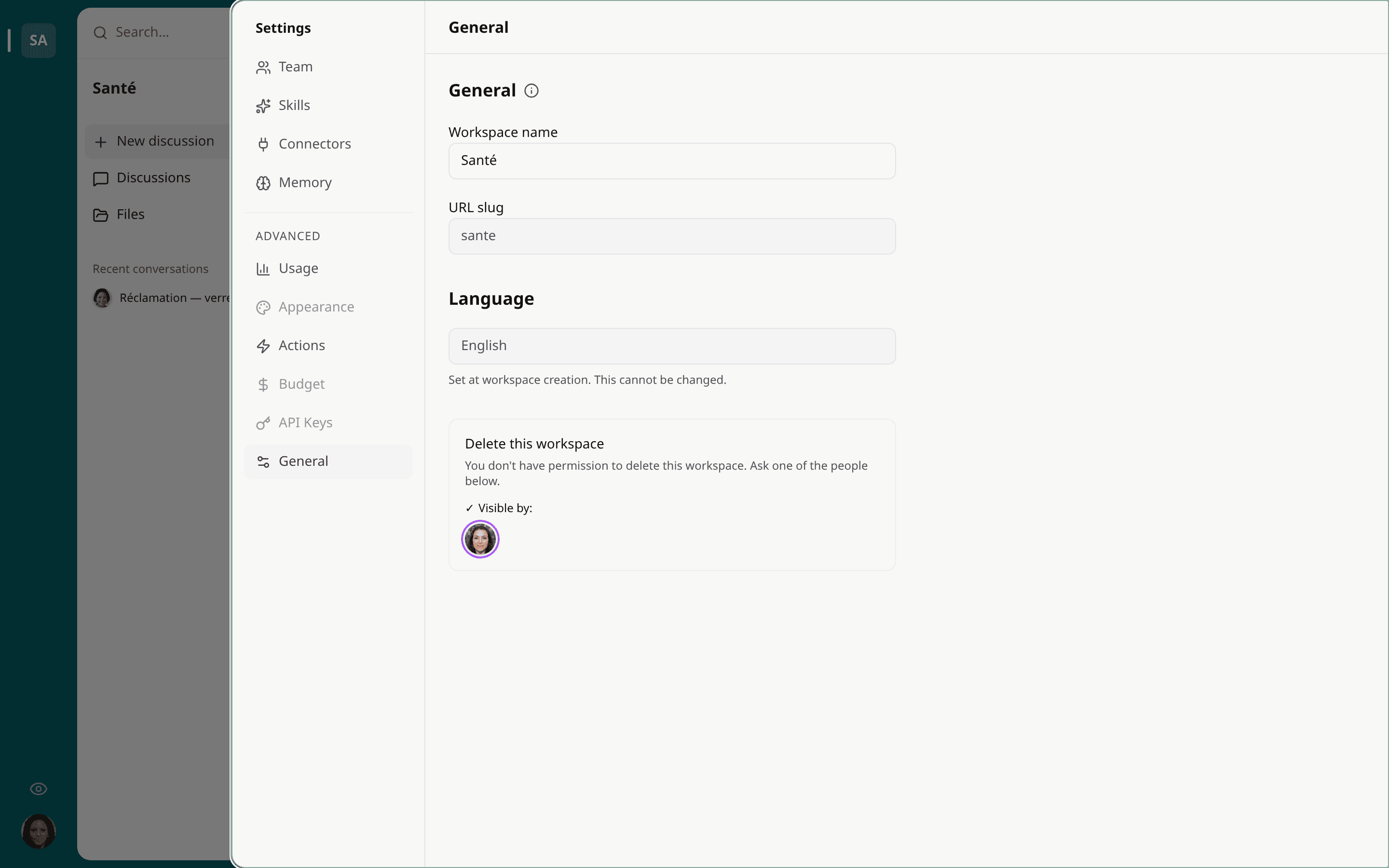
What each person sees follows from these permissions, with no further mystery: the administrator additionally gets the Danger zone (Delete, Transfer); the referent sees the deletion block locked, with the list of people to ask; the user gets the tab read-only, replaced by the capability explainer — who can do what, and whom to turn to. That is the behavior of any tab out of a role's reach, described in the permission model.
Rename the workspace
Open the workspace's Settings panel, then the General tab under the ADVANCED group.
Click into the Workspace name field and type the new name. The displayed name is updated in the interface; the address (slug) does not move.
What deletion entails
Deleting the workspace permanently erases the workspace and all its data — conversations, files, memory, budgets. There is no trash bin. That is why the action is reserved to the administrator and confirmed before acting.
What a transfer entails
A transfer moves the workspace to another organization where you are an administrator — the button tells you if none is eligible. The workspace leaves whole, but not its social context:
- Leaves with the workspace: conversations, files, memory, budgets — and the workspace's custom skills, copied into the destination organization so they don't end up orphaned.
- Is removed: every workspace member except you. The team belongs to the origin organization; in the new one, you rebuild it.
- Is revoked: the workspace's own API keys. They were attached to the origin organization; the workspace will use the new organization's keys, or new keys of its own.
- May change: the address (slug), adjusted automatically if another workspace already uses it in the destination organization.
After the transfer, you are redirected to the destination organization, straight into the workspace.
For the origin organization, a transfer reads as a departure: the workspace disappears from its Workspaces view and its members lose access immediately. Warn the team before, not after.
Choose the document editor
Use the legacy editor until the fix is available
The new editor has a defect that can reject typing, even in an ordinary Markdown paragraph spanning multiple source lines, with the message “This editor selection crosses an unsupported source island”. Keep it disabled in production until this is fixed.
To restore the legacy editor, send an authenticated PATCH /api/workspaces/{id} request with the Edit settings permission:
{"document_editor_enabled": false}This disables the editor, revision guard and intervention history together for subsequent operations. It deletes neither files nor retained versions. Reload open pages to apply the change. Installing a new Brume version does not change this setting by itself.
Experimental activation
The document editor is opt-in and disabled by default for each workspace. It provides automatic saving, rendered/source editing and AI passage markers in Conversation and Files.
With the Edit settings permission, send an authenticated PATCH /api/workspaces/{id} request with this JSON body:
{"document_editor_enabled": true}Activation captures the existing files’ baseline and atomically enables the editor, revision guard and intervention history (document_editor_enabled, document_revision_guard_enabled, document_intervention_history_enabled). Do not set those flags independently. Sending false disables all three together.
Wait for the workspace’s agent runs to finish before enabling it. A running, resuming or suspended run causes an HTTP 409, as does a concurrent activation; retry once the run has finished or the other activation has completed. A rejected activation leaves the workspace unchanged.
Go further
Understand the private workspace
What a member's personal workspace is: an aggregated view over their collaborative workspaces — files, skills and memory — without copying any data.
Understand the permissions model
How Brume decides who can do what: two role levels, three configuration layers, and what happens where they meet.