Feed the agent's memory
Settings panel › Memory tab — feed the workspace's /.memory folder, edit MEMORY.md (the file injected into every conversation), and who can actually write to it.
In brief
Feed your workspace's memory from the Memory tab in Settings: edit MEMORY.md — the file injected into every conversation — and drop next to it the documents the agent will consult on demand. Writing follows the Files permissions: any member can add a file by default; editing an existing file requires "Edit files".
The agent keeps in mind, from one conversation to the next, a durable context specific to your workspace: your preferences, your team's vocabulary, the framing of your projects. This context lives in the workspace's /.memory folder, whose central piece is the MEMORY.md file — the only one whose content is injected into every conversation; the agent itself writes its learnings there as conversations go. The full mechanism is explained in Understand how the agent remembers; this page gives the steps: where the tab is, how to feed the folder, and who can write to it.
Not to be confused with the Upload files and make them searchable page, which covers the knowledge base you mobilize on demand via @ in a discussion. Here, the subject is permanent context: what the agent keeps in mind continuously, for everyone, in every conversation of the workspace.
The Memory tab
Memory lives in the Settings panel, Memory tab (?panel=settings&tab=memory). On a workspace that has no memory file yet (the default case of a fresh workspace), the tab shows a narrative empty state. As soon as a first file exists — uploaded by a member, or created by the agent itself — it gives way to a file explorer rooted at the workspace's /.memory folder.
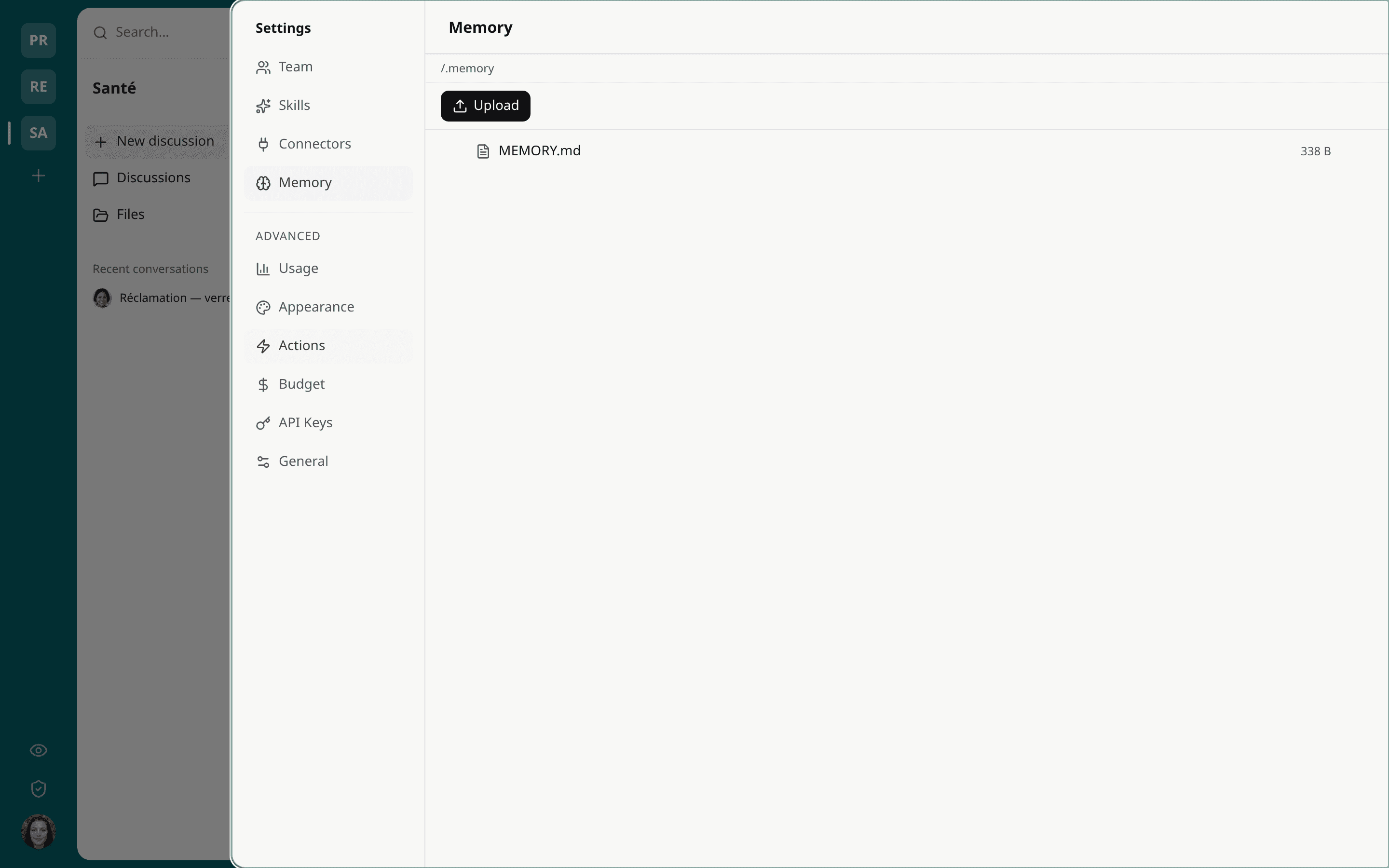
Every role sees the same tab: same empty state on a fresh workspace, same explorer once files exist.
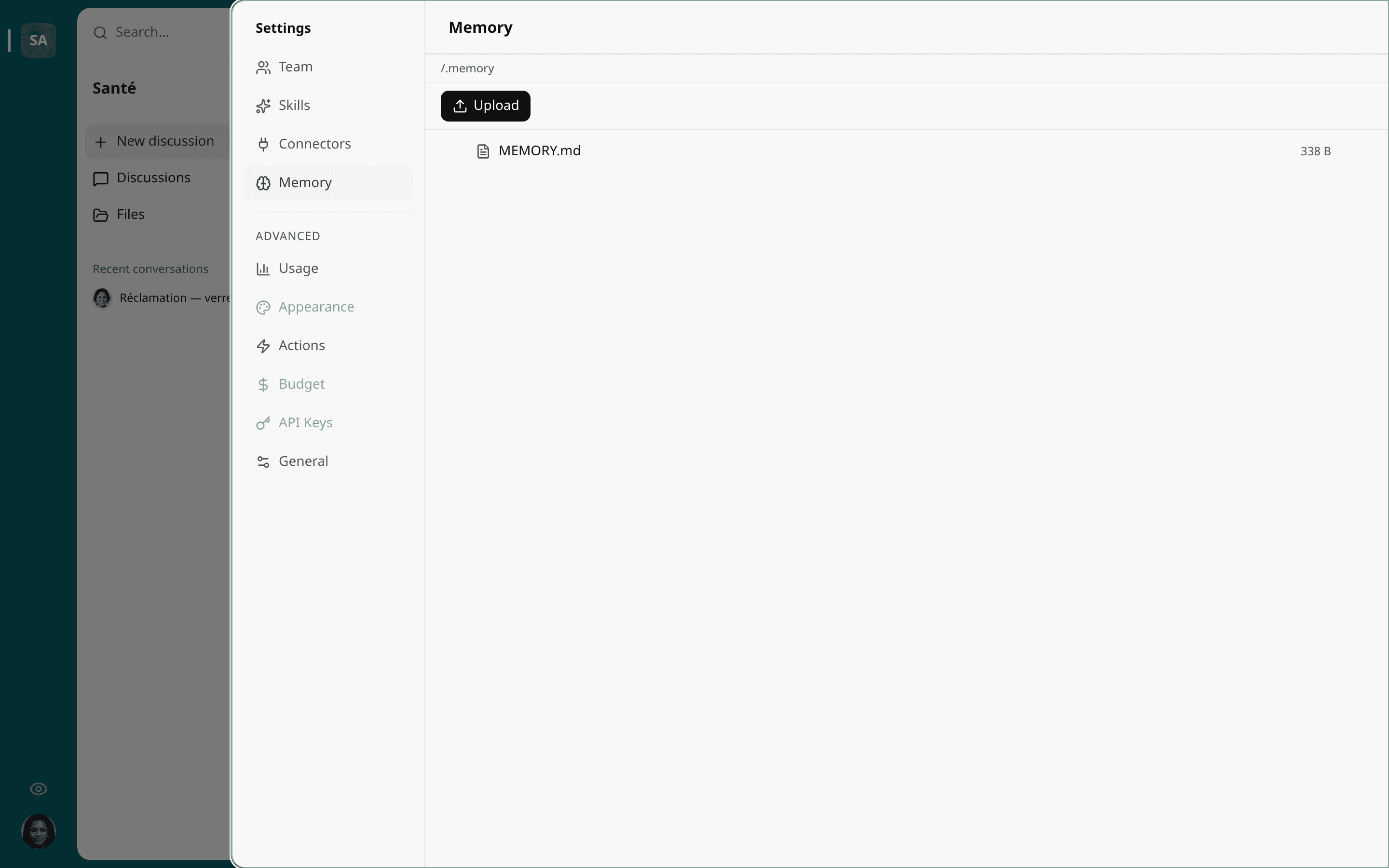
Once files exist: the /.memory explorer
| Area | Role |
|---|---|
/.memory breadcrumb | Path of the workspace's memory folder, root of the explorer. |
MEMORY.md | The file injected into every conversation — memory in the strict sense. The agent writes its learnings there; you can read, correct, and prune it. |
| Upload button | Adds a context file to the folder. A file added next to MEMORY.md is not injected: the agent reads it on demand. |
| File list | The existing memory files. The .brumekeep file is a technical marker that keeps the folder present even when empty. |
What you can do
- Open
MEMORY.mdto review what the agent has retained, correct it, or write directly the instructions that apply to the whole workspace. - Upload a supporting document (framing note, team conventions, internal glossary) the agent will consult on demand — and reference it from
MEMORY.mdif it must weigh in permanently. - Organize the folder (create a subfolder, rename, move), as in the Files explorer.
- Delete an obsolete file — it goes to the Trash, from which it can be restored.
Only the content of MEMORY.md is injected into every conversation of the workspace. An instruction you write there applies to every member, in every discussion. Keep it in shape: stay factual, write the preferences and context that apply to everyone, avoid putting sensitive or one-off information in it.
Edit the workspace's persistent context
Open the Settings panel from your workspace (gear icon or workspace switcher → Settings). The Settings drawer appears on the side.
Click the Memory tab in the Settings list. The /.memory folder explorer appears, or the empty state if no file exists yet.
Open MEMORY.md to edit it, or click Upload to add a supporting document. The content is taken into account in the workspace's next conversations.
To remove obsolete context, prune MEMORY.md or delete the file in question. A deleted file goes to the Trash, from which you can restore it if needed.
Who can write to memory
Writing under /.memory follows the workspace's Files permissions — the same ones as the Files explorer. With the factory presets:
| Action | Permission | Referent | User |
|---|---|---|---|
| Browse the folder | View files | Yes | Yes |
| Add a file (upload, create) | Create files | Yes | Yes |
Edit an existing file (including MEMORY.md) | Edit files | Yes | No |
| Delete a file | Delete files | No | No |
Two consequences worth knowing:
- A plain user can, by default, add a file to memory. If you want to reserve feeding the memory to the referent and the admin, remove "Create files" from the users in question — organization matrix or individual override, see the permission model.
- Deleting requires a permission that is off by default: only the admin — who holds every right — can delete out of the box; a referent must be granted "Delete files" as an override.
The matrix also shows a Memory category ("View memory", "Edit memory"). These permissions do not currently govern writing under /.memory: the Files permissions above are the ones that apply. The /.memory folder itself is protected — it cannot be deleted or renamed, whatever the role.
Go further
Understand how the agent remembers
The mechanism: MEMORY.md injected, the rest readable on demand, and what memory does not promise.
Upload files and make them searchable
The knowledge base: uploading, indexing, the @ mention.
Understand the permission model
Presets, organization matrix, individual overrides.
Understand how the agent remembers
The memory mechanism: the MEMORY.md file injected into every conversation, the rest of the folder readable on demand, the agent writing down its own learnings — and what memory does not promise.
Connect a third-party service
Enable an external service on a workspace, then authenticate an account, from the Connectors tab of Settings.