Connect a third-party service
Enable an external service on a workspace, then authenticate an account, from the Connectors tab of Settings.
In brief
Wiring up a service takes two distinct steps: enable the connector on the workspace, then connect an external account. Until both are done, the workspace's agents have none of the service's tools.
A connector hands the workspace's agents the tools of an external service — Salesforce, HubSpot, GA4, and 900+ more — for them to use during a conversation. Before entrusting an account, read how connectors work: where the secret goes, who gets to use it, what disconnecting removes.
Access: Referent. In the current workspace, CAN_EDIT_CONNECTORS opens enabling and CAN_CONNECT_CONNECTORS opens account connection. The workspace role decides — except for organization admins, who keep every right everywhere.
Open the Connectors tab
Open the workspace Settings panel — Settings icon in the sidebar, or the ?panel=settings URL.
Click the Connectors tab. Depending on your rights, you get the editing console or the read-only view.
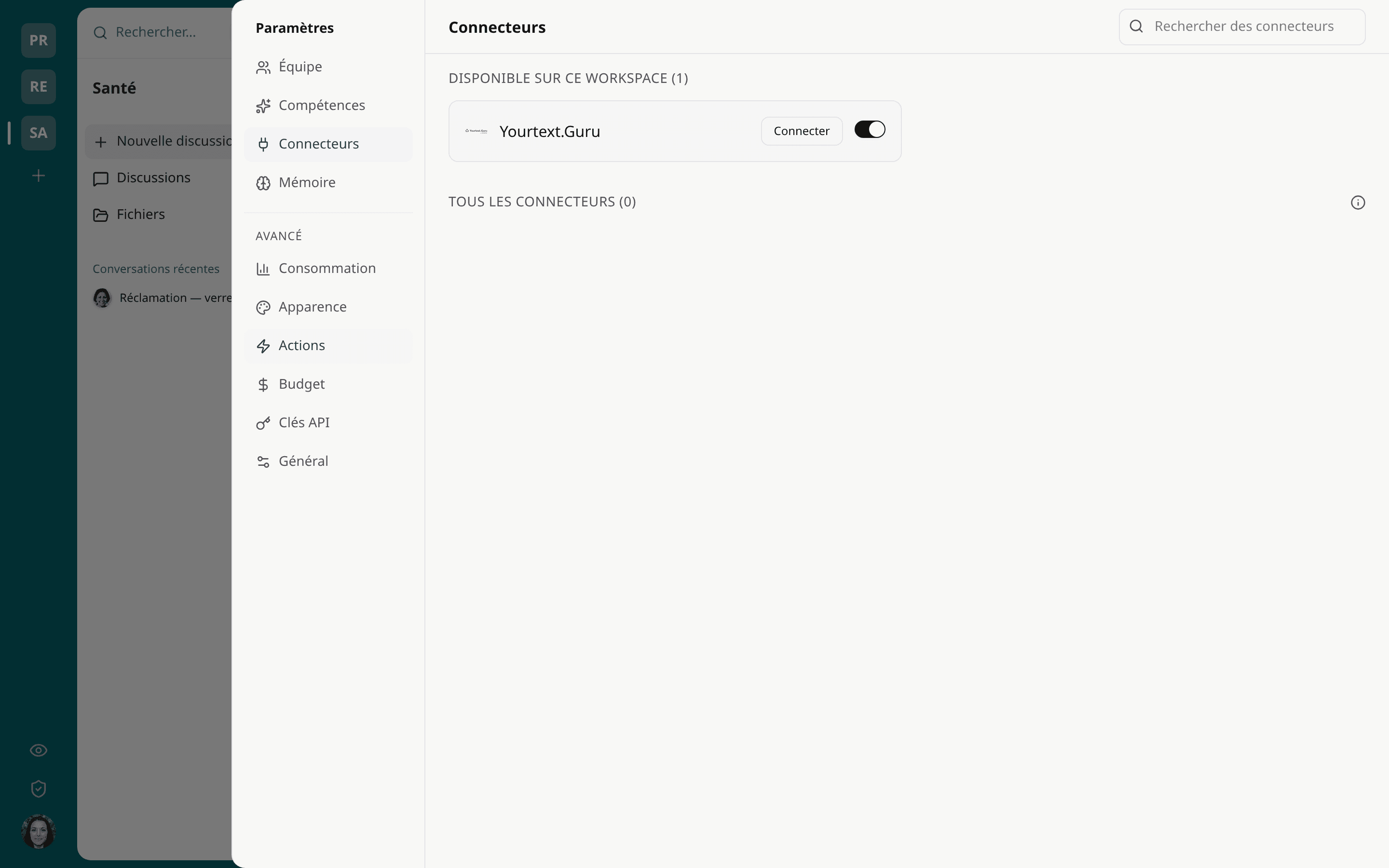
The console holds two lists: Available on this workspace, the connectors already enabled here, and All connectors, the rest of the catalogue. The search field at the top filters both.
Enable a connector on the workspace
Under All connectors, look up the service by name.
Click its row, or flip its switch to the right. It moves straight into Available on this workspace.
To remove it, flip the switch back to the left: it returns to the catalogue. The account stays connected — disabling does not remove the authentication. To remove that too, disconnect the account before disabling.
Connect an external account
Enabling makes the connector visible; this step is what gives it an account to use.
Under Available on this workspace, click Connect next to the connector.
If the service uses OAuth, an authorization window opens on the service itself. Grant access, then close the window: Brume refreshes the connector's state on its own.
If the service uses an API key, paste it into the dialog, then confirm. The key is checked against the service before being accepted: if it is rejected, the error appears under the field.
The Connected label appears and the Connect button becomes Disconnect. The service's tools are now available to the workspace's agents.
The account you authenticate belongs to the workspace, not to you: every agent in the workspace uses it. Prefer a service account over a named one.
Disconnect an account
Click Disconnect next to the connector: the authentication is removed, the connector stays enabled and ready to be reconnected. To take it out of the workspace entirely, disable it as well.
When a connector is not enough
A connector exposes tools; a skill chains them into a business process. Some skills require an active connector: without it, their tools do not appear and the skill says so in the conversation. The “SEO with Yourtext.Guru” skill, for instance, only works once the connector of the same name is connected and supplying its ytg_* tools.
Before rolling out a skill that depends on an external service
Wire up the connector on the workspaces concerned before enabling the skill. Skills that require a connector are flagged in the system skills catalogue.
If the tab shows in read-only
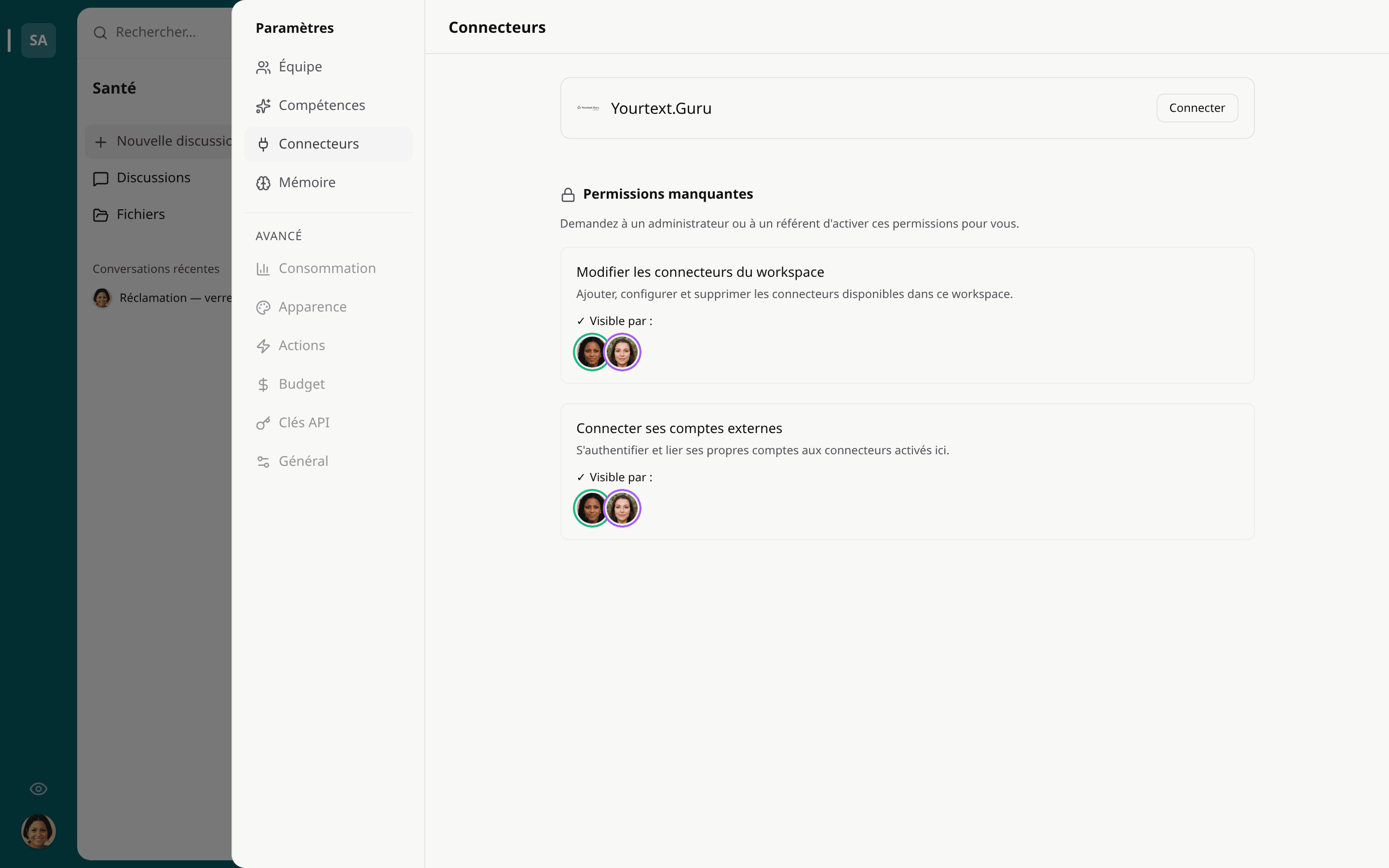
Without the permission to edit connectors, you see the ones the workspace already enabled, with no way to add more. The Missing permissions block at the bottom names what you lack and shows the people who can grant it. If you do hold the permission to connect your accounts, the Connect button stays active on already-enabled connectors.
Two permissions govern this tab: one opens enabling connectors, the other connecting and disconnecting accounts. Their per-role values are in the permissions matrix, and the mechanism in the permissions model.
Going further
Feed the agent's memory
Settings panel › Memory tab — feed the workspace's /.memory folder, edit MEMORY.md (the file injected into every conversation), and who can actually write to it.
How connectors work
Where your credentials go when you wire up an external service, who holds what between Composio, Brume and your organization, and what travels on every tool call.