Ask the agent a question
Send a request, follow the generation and stop it, continue the exchange, then find, rename, or delete a conversation.
In brief
Write your request in the composer and send: the answer is written before your eyes, you can stop it and follow up. Every conversation stays in "Conversations", where you find it again, rename it, or delete it. The model that answers is named at the top left and can be changed from there.
Chat is the everyday screen. You put a request to it, Brume works on it using the workspace's files and skills, then answers. This page covers one full cycle — send, follow, continue — then the life of the conversation once the exchange is over.
The screen is the same for all three profiles. The @ and / prefixes are open to everyone; what / offers depends on the skills your Power user has enabled.
Send a request
Write in the field at the bottom of the screen, then press Enter (or the send button). The paperclip attaches a document to the request itself, for a file you do not want to store durably in the workspace.
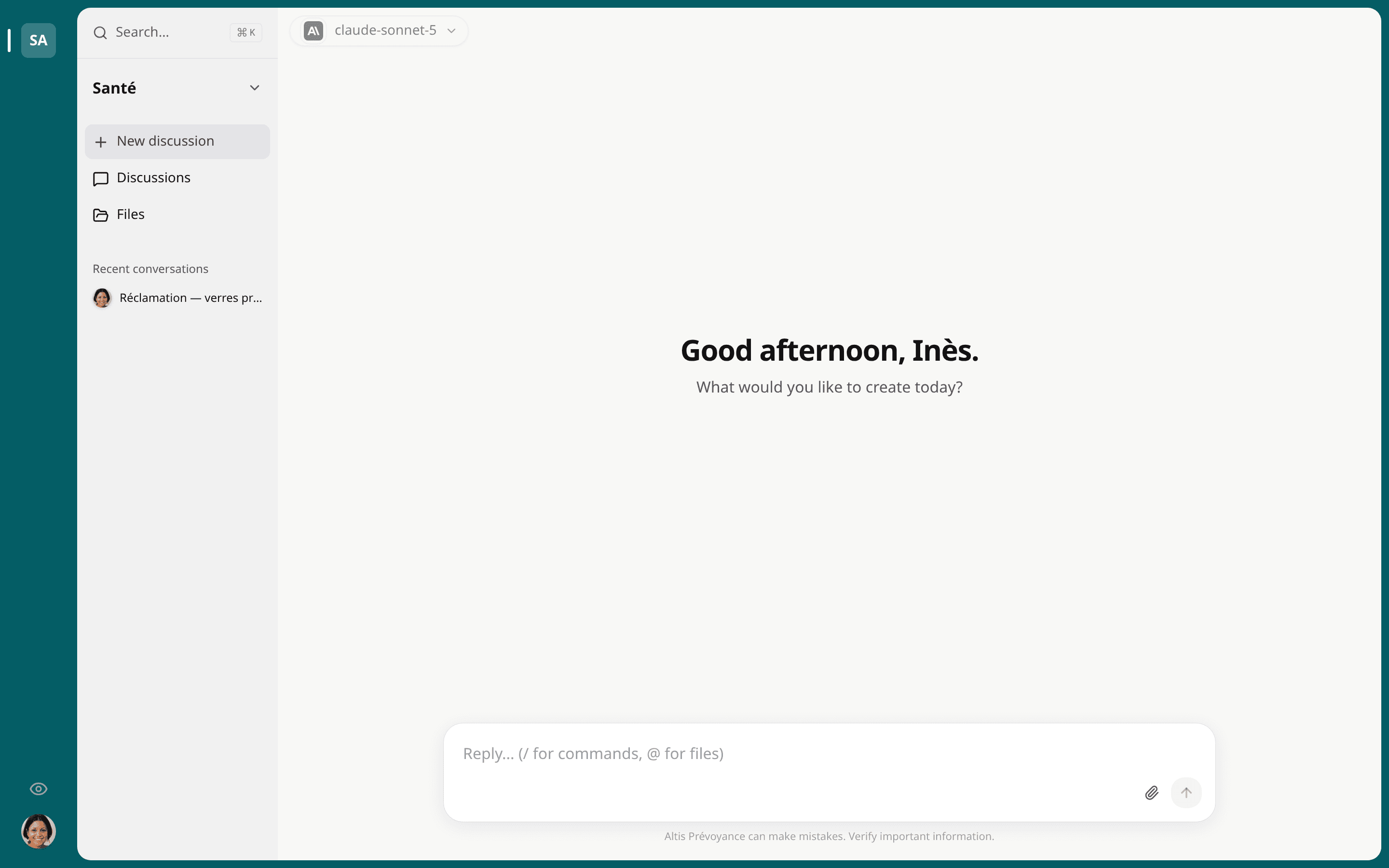
Two characters open a menu right inside the input, and they are how all the context of your request gets in:
| Prefix | What it does | Where it is detailed |
|---|---|---|
@ | Points at an indexed file in the workspace so Brume can rely on it | Upload files and make them searchable |
/ | Runs a skill, that is, an action prepared in advance | Run a skill and mention a file |
On a workspace that is still empty, quick actions set up by your Power user pre-fill a typical request in one click — a starting point, not a constraint.
Without an API key configured, your request is sent but no answer is produced. If your messages stay silent, that is the first thing to check: see API keys and the onboarding path.
Follow the generation, and stop it
The answer is written as it comes. Before it, Brume shows what it is doing — "Searching for skills", "Reading this file" — with a time counter. That trace is the only way to see what the answer is being built on, and so to spot early that it is heading the wrong way.
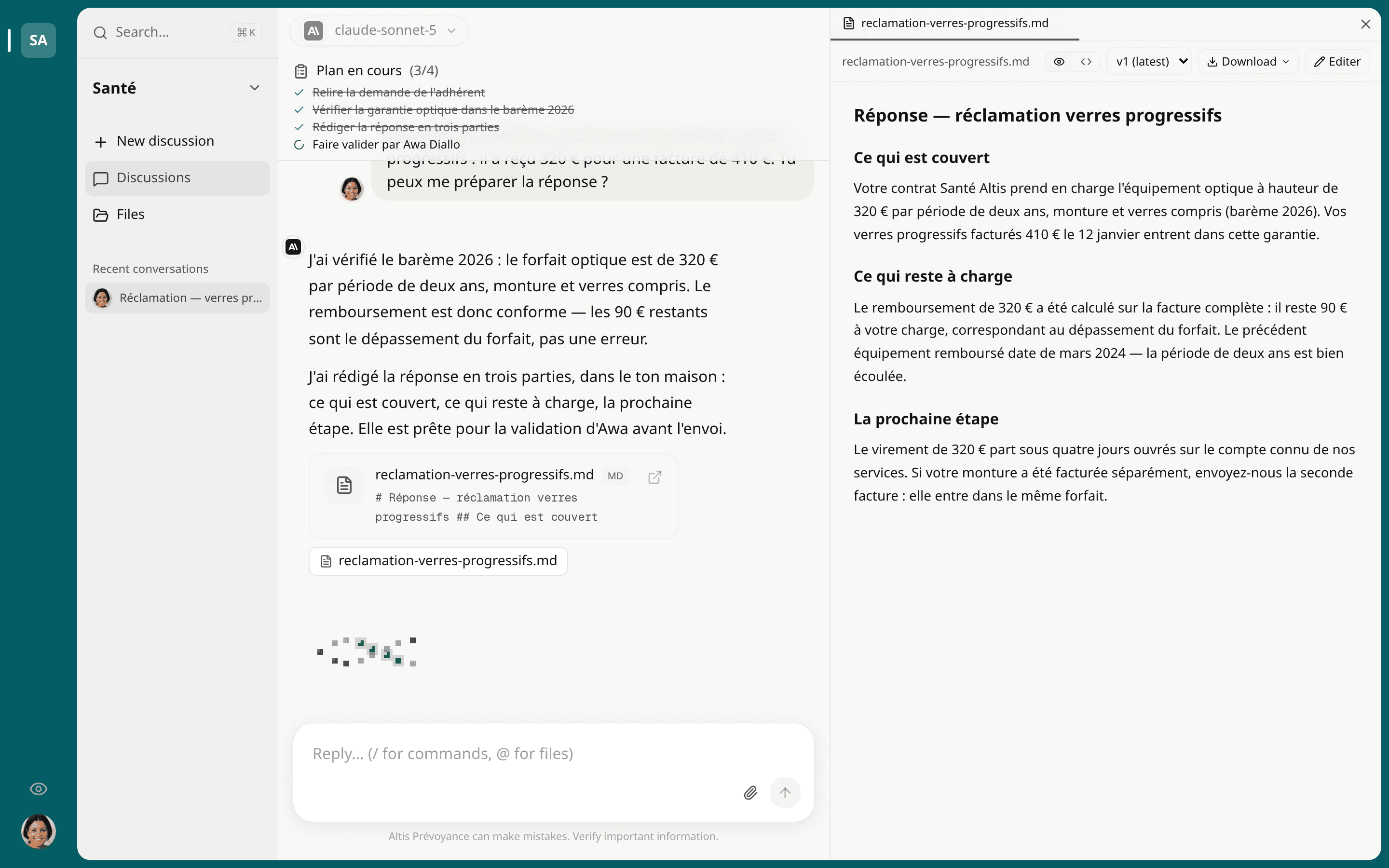
The send button becomes a stop button during generation. Click it as soon as the answer drifts: you get control back immediately, and what has already been written stays in the thread so you can rephrase from there.
The agent may also ask you an intermediate question rather than guess. Your answer slots into the thread and the work resumes where it left off.
Continue the exchange
Once the answer is in, the composer stays at the bottom: the next message keeps the whole context of the exchange. That is what makes a conversation more effective than a series of isolated requests — no need to restate the files or instructions already mentioned.
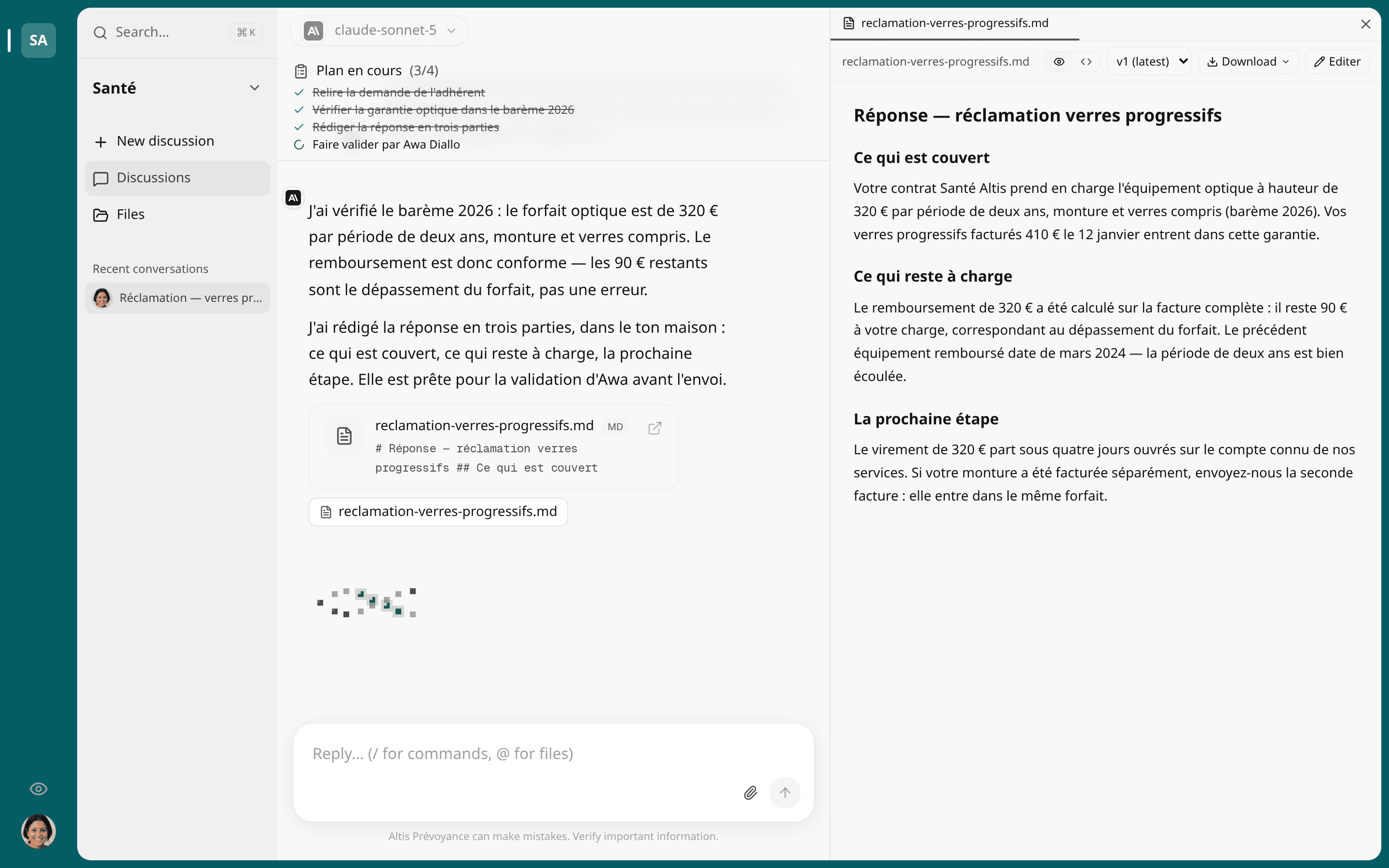
The answer is rendered as markdown — headings, lists, code blocks — and copies on hover. What the agent produces as a deliverable (a document, a plan) is not buried in the text: see Track tasks and collect deliverables.
Choose the model that answers
The model's name is shown at the top left of the chat area, and every answer carries the attribution of the model that produced it underneath. You can change it if you hold the permission: see Choose the model that answers.
Find, rename, delete a conversation
Nothing is lost: every conversation is saved from the first message.
- Find it. The most recent ones appear under "Recent conversations" in the sidebar. "Conversations" opens the full list, with a search field over the titles.
- Its title. After a few exchanges, Brume names the conversation itself from its content. You can replace that: Rename in the conversation's menu, or a double-click on its title in the sidebar. A title you have set is never rewritten automatically again.
- Delete it. Delete in the same menu, after confirmation. Deletion is permanent and cannot be undone. From "Conversations", a multi-select lets you delete several at once.
There is no pinning and no archiving: a conversation is either live or deleted.
Step into a colleague's conversation
A workspace's conversations are visible to its members: you can open a colleague's one to read it. Writing in it is another matter — that is intervention, opened by the "Intervene in chats" permission, granted by default to the Power user and the Admin (see Roles and permissions). Your messages are then marked as such in the thread.
Intervention is for picking up work in progress, unblocking someone, or reviewing a session together — without having to pass screenshots around.
Going further
Open an organization
Set up a Brume organization from scratch: founder account, model provider key, roles, team, and a first skill.
Choose the model that answers
Change a conversation's model from the chat: where the selector is, when the choice takes effect, why a model is greyed out, and who is allowed to switch.