Run a skill and mention a file
Describing your need is enough to trigger a skill; the slash / forces one, the @ mention targets an indexed file.
In brief
Describe your need: Brume picks the activated skill that matches. Type / to force one, @ to target an indexed file. All three combine in a single message.
There are two ways to launch a skill. The most common one needs no shortcut: you write your request in plain language and Brume picks. The slash / is for when you want to decide yourself. The mention @ opens the list of indexed files to point the agent to a specific document.
The default path: describe your need
On every new work request, Brume compares what you wrote against the description of the skills activated in your workspace, and loads the matching one — one to three at most. There is nothing particular to type: “write me an article about health insurance” triggers Blog Writing, “why am I not ranking on Google” triggers SEO Audit.
This is the path the rest of this cluster assumes: a well-written skill is recognizable by the fact that it triggers on its own, on your team's real wordings. The slash is not the mandatory route, it is the manual override.
The sorting happens on each skill's description, and on that alone. A skill that never triggers almost always has a description that is too vague: see The description decides the trigger.
Two reasons to go through the slash anyway: when two neighboring skills compete for your request and you want to settle it, and when your request is too short to be classified (“the pricing page”).
The @ mention: target a specific file
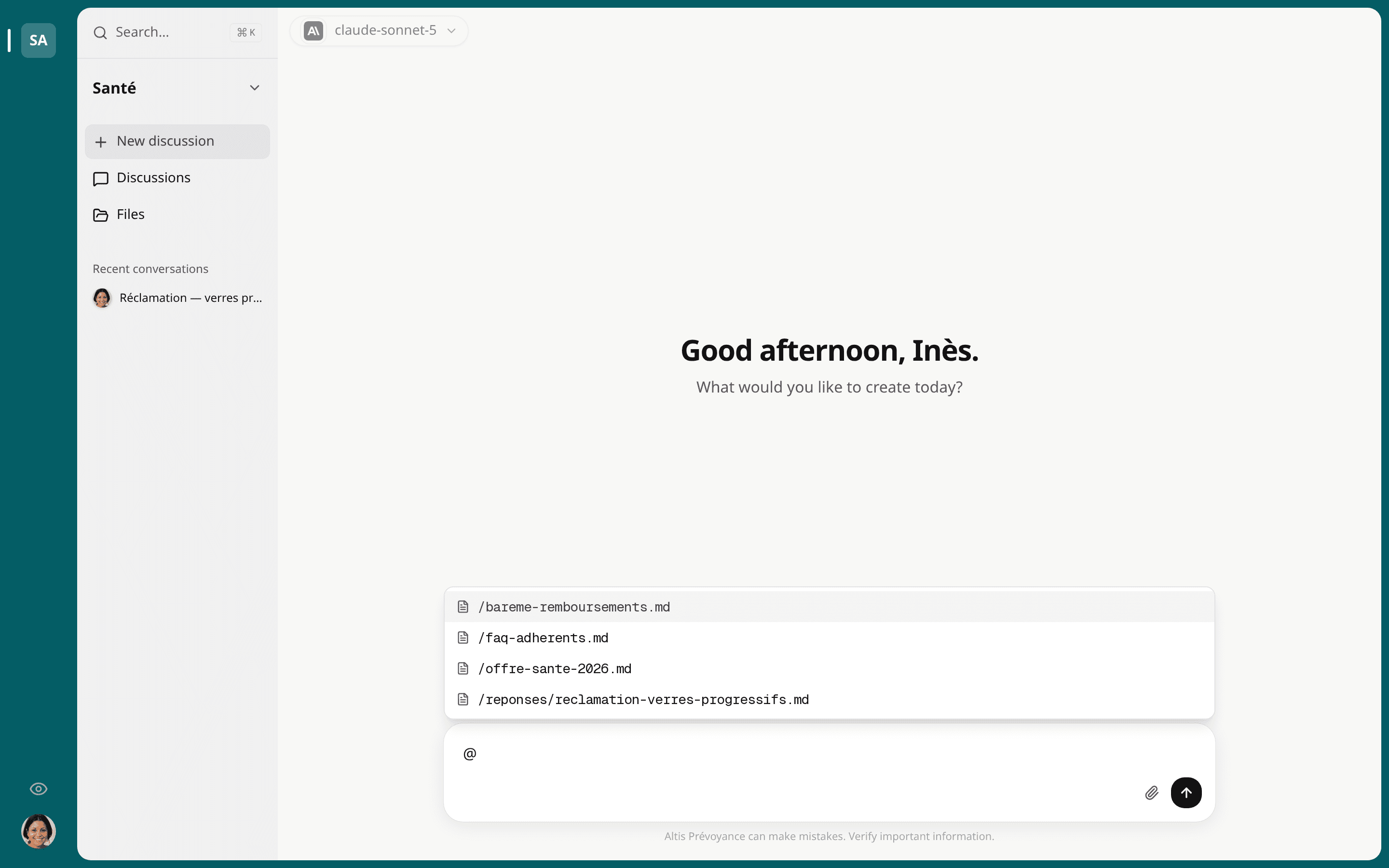
Type @ in the composer to attach your request to a file already present in the workspace. The agent then focuses its response on this specific file.
What you see
| Area | Role |
|---|---|
| Suggestion popover | Opens when typing @ in the composer, above the input box. |
| List of mentionable files | Shows the indexed files in the workspace (e.g. /note-offre-sante.md); gets filtered as you type after @. |
What you can do
Type @ in the composer (at the beginning of the line or after a workspace). The file suggestions popover opens.
Keep typing to filter the list by file name, or cycle through suggestions with the up and down arrows on the keyboard.
Select the desired file (click or Enter key). Its reference @nom-du-fichier is inserted into the composer.
Complete your request after the mention, then send. The agent works on this specific file in its response.
Only files whose indexing (RAG) has finished appear in the popover. A file that has just been uploaded and is still being indexed remains missing from the list. If the popover displays “No files”, there is no indexed file corresponding to your entry. See Upload files and make them searchable to upload and index a mentionable document.
The slash /: force a skill
Type / in the composer to open the list of skills enabled in the workspace and pick one explicitly. The manual choice wins: the selected skill attaches to the message, whatever text you write afterwards.
What you can do
Type / in the composer. The list of skills activated in the workspace is displayed.
Select the desired skill from the list. She attaches herself to your message.
Complete your request (the context or elements on which the skill must work), then send.
Only workspace-enabled skills appear via /. The list depends on what the referent has configured for your space. To activate or import skills, see Activate and manage skills, an action only the referent profile performs.
Combine a skill and a file
The two shortcuts are combined in the same message: you launch a skill via /, then you designate a workspace file for it via @. The skill then works on the chosen document.
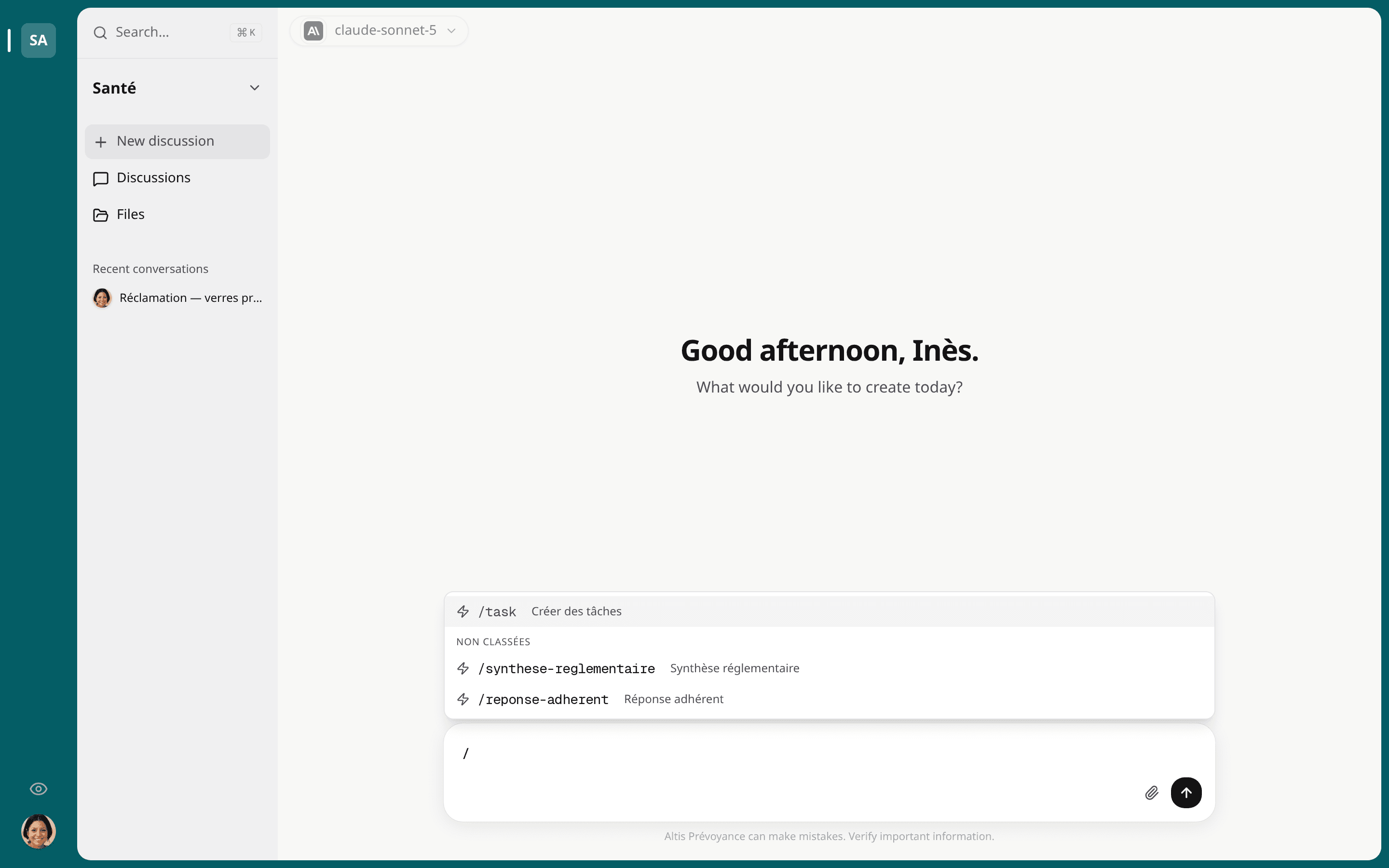
Type /, choose your skill (for example Sales Help). She sticks to the message.
Type @ and select the desired file (for example note-offre-sante.md). Its reference is added after skill.
Send. The agent executes skill based on the mentioned file.
These two shortcuts are available for the three profiles (user, referent, administrator). What changes depending on your space is the content of the lists: the available indexed files and the skills that the referent has activated there.
Understand the sovereign filter
How sensitive data is caught before every call to the working model, and how the conversation switches to sovereign context without taking control away from you.
Activate and manage skills
Skills tab of Settings: activate, import and manage the skills available in the workspace composer.