Activate and manage skills
Skills tab of Settings: activate, import and manage the skills available in the workspace composer.
In brief
Activate or deactivate a workspace's skills, import new ones and open the details of each. Spot the ones inherited from another workspace.
skills are the skills that your agents can use in a discussion. The Skills tab of the Settings panel lists the skills of the workspace, allows you to activate or deactivate them, import new ones and open the details of each. The skills activated here are those that appear when a user types / in the composer (see Run a skill and mention a file).
Access: Referent. The “Modify skills of workspace” permission enables editing for referents and administrators; users have a read-only view or an explainer.
Open Skills tab
Click the workspace at the top of the side panel to open the Workspaces Chooser, then click the Settings icon. The Settings panel opens as a drawer on the left.
In the left column of the panel, click Skills. The list of skills of workspace is displayed.
The referent view (editing)
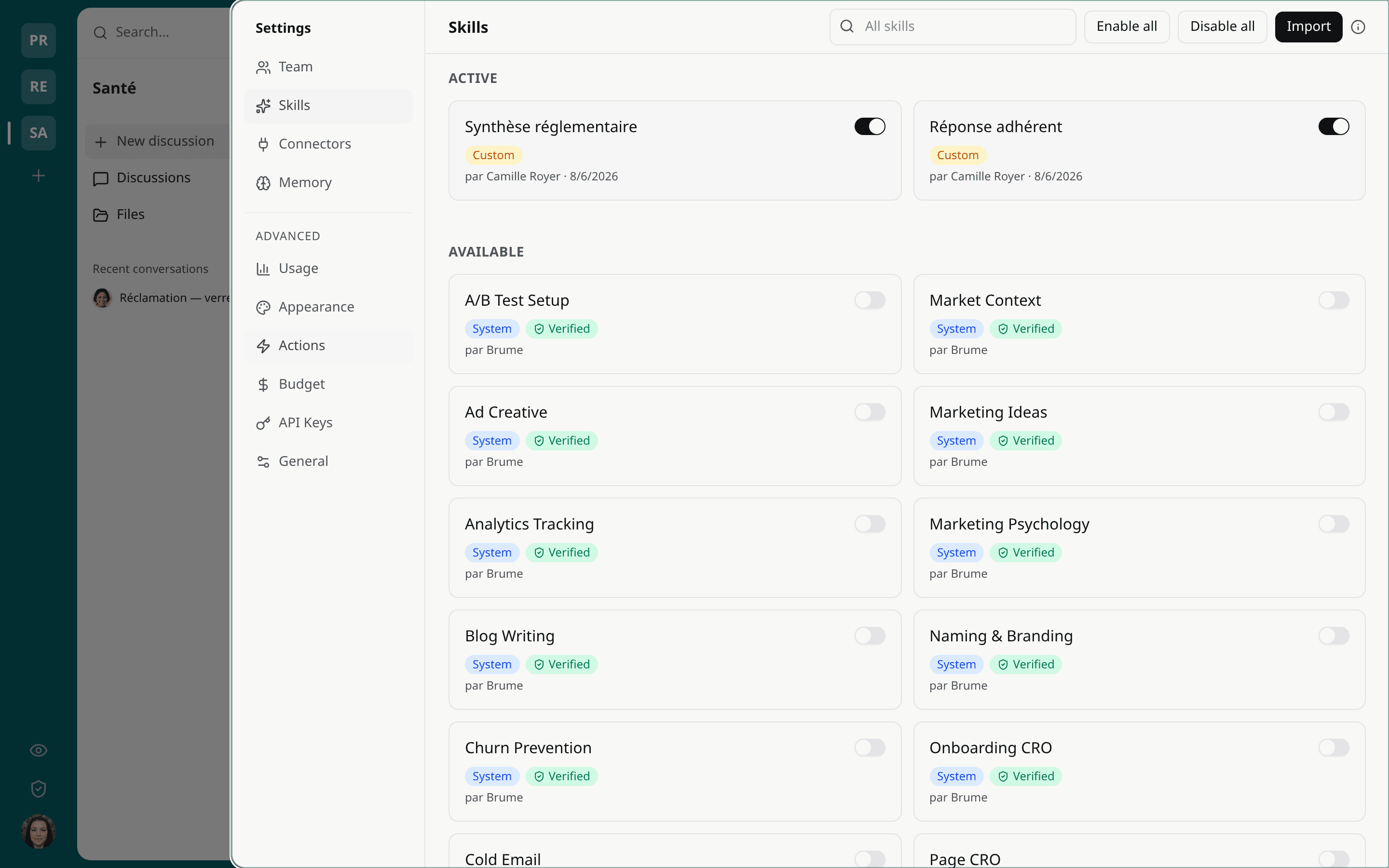
This is the screen that a referent and an admin see. It lists all skills of workspace, separated into two sections, with one switch per skill.
What you see
| Area | Role |
|---|---|
| Searching for skill (“All skills”) | Filters the list by name as you type. The search is kept in the URL. |
| Enable all | Activates all activatable skills of the workspace at once. |
| Disable all | Disables all activatable skills of the workspace at once. |
| Import | Opens the file chooser to add a skill (.skill or .zip file). |
| ASSETS Section | The skills currently activated, therefore available in the composer. |
| AVAILABLE section | The skills present in the workspace but not activated. |
| skill card | skill name, badges, author, and activation switch. |
Each card carries badges that qualify the skill:
| Badge | Meaning |
|---|---|
| System | Skill provided by Brume, present by default. |
| Custom | Skill imported or created in workspace. |
| Verified | Skill marked as validated (green dot). |
via {espace} | Skill inherited from another space. Its switch is locked: it is managed from the source space. |
What you can do
Search for skill
Click in the search box at the top of the tab and enter all or part of the skill name. The Active and Available sections are filtered live.
Click on the cross in the field to clear the search and find the complete list.
Enable or disable a skill
Locate the skill card in the Available (to activate) or Active (to deactivate) section.
Click the switch at the top right of the card. The skill moves from one section to the other and becomes (or ceases to be) offered in the composer via /.
A skill marked "via {espace}" is inherited: its switch is disabled. To manage it, open the Home Workspace Settings.
Enable or disable all skills
Click Enable All to change all activatable skills to Active, or Disable All to return them all to Available.
Enable All and Disable All do not affect skills inherited from another space: they remain in the state defined by their source space.
Import a skill
Click Import. Your system's file chooser opens.
Select a file from skill in .skill or .zip format. The import starts.
A confirmation “Skill imported. » is displayed and skill appears in the list. In the event of an error, a message specifies the cause.
If a skill with the same identifier already exists in the organization catalog, a dialog offers Replace, Duplicate… (you then enter the new identifier), or Cancel. A system skill cannot be overwritten: the import is refused, with no replacement option.
Open the details of a skill
Click on the skill board (apart from its switch). A detail panel opens on the right.
The detail displays the contents of the skill and its badges. Depending on your rights, you can mark skill as Verified, duplicate it, export it or delete it.
Modifying or deleting a shared skill impacts all workspaces that use it. A warning reminds you before confirming the action.
The referent view in a shared workspace
In a shared workspace, the referent has the same commands as the admin: search, Enable all, Disable all, Import, and switches by skill. The “Modify skills of workspace” permission opens this editable view.
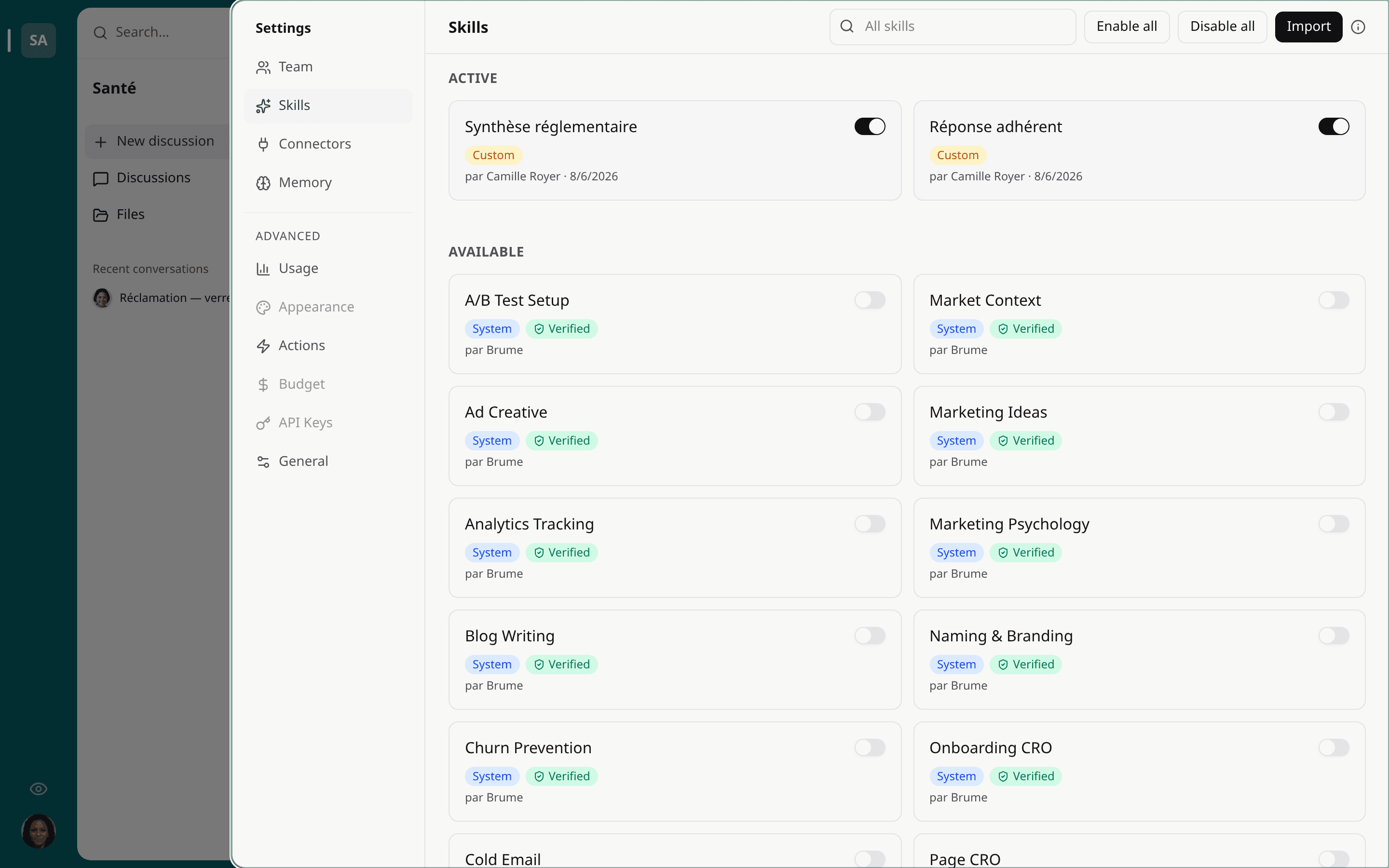
The tab behaves like the edit view described above. Actions on a skill (activation, import, deletion) apply to the entire shared workspace.
User view (read only)
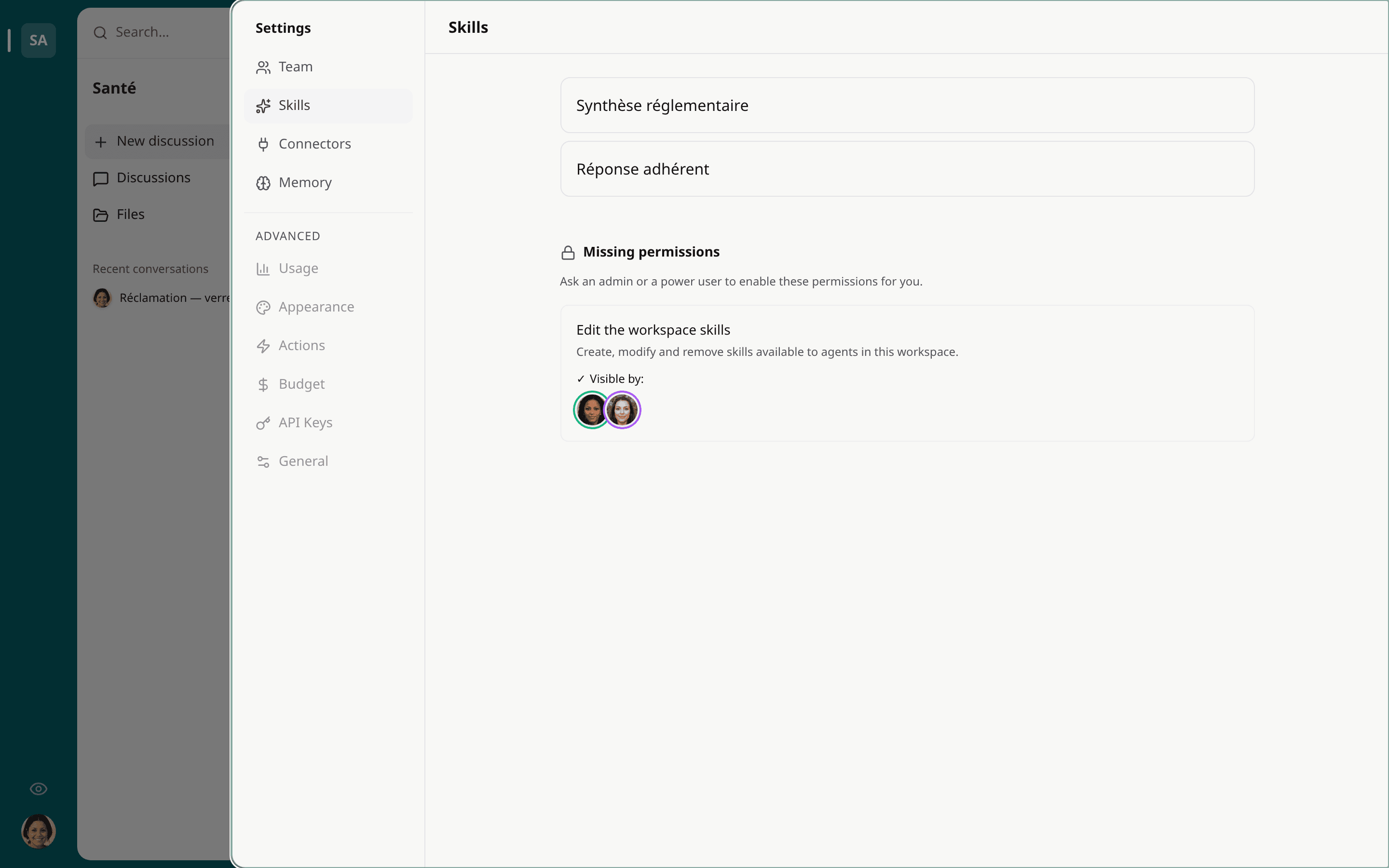
A user without edit permission sees the activated skills of workspace as read-only, without a switch or import button. When no skill is yet configured, the tab displays an explanation instead of the list.
What you see
| Area | Role |
|---|---|
| List of activated skills | Click on a skill to open its detail for reading. |
| “No skill is configured” message | Displayed when the workspace does not yet offer any skill, with the avatars of the admins to contact. |
| Missing Permissions block | Lists locked actions and who can unlock them. |
| Change skills of workspace | Action missed: create, modify and delete skills available to agents of this workspace. |
| Visible by | Avatars of people (referents, admins) who hold permission. |
What you can do
Click on a skill from the list to view its details. You see it in reading, without being able to modify it.
To obtain editing rights, contact one of the people displayed under "Visible by" and ask them to activate the "Modify skills of workspace" permission.
A fully locked tab does not display the content but an explanation (the possible actions and who owns them). This is the case as soon as a shared workspace does not give you the corresponding permission.
Run a skill and mention a file
Describing your need is enough to trigger a skill; the slash / forces one, the @ mention targets an indexed file.
Import an existing skill (Claude, ChatGPT…)
Prepare a compatible Claude or ChatGPT archive, import it from Workspace Settings → Skills, and adapt it for Brume.