Create your account
Use the Login and invitation screens to access Brume or create an account in an organization.
In brief
Log in with an existing account, or open the link you received to create your account and join an organization. The invited address identifies the account and cannot be changed.
Log in
Open the Brume Login screen.
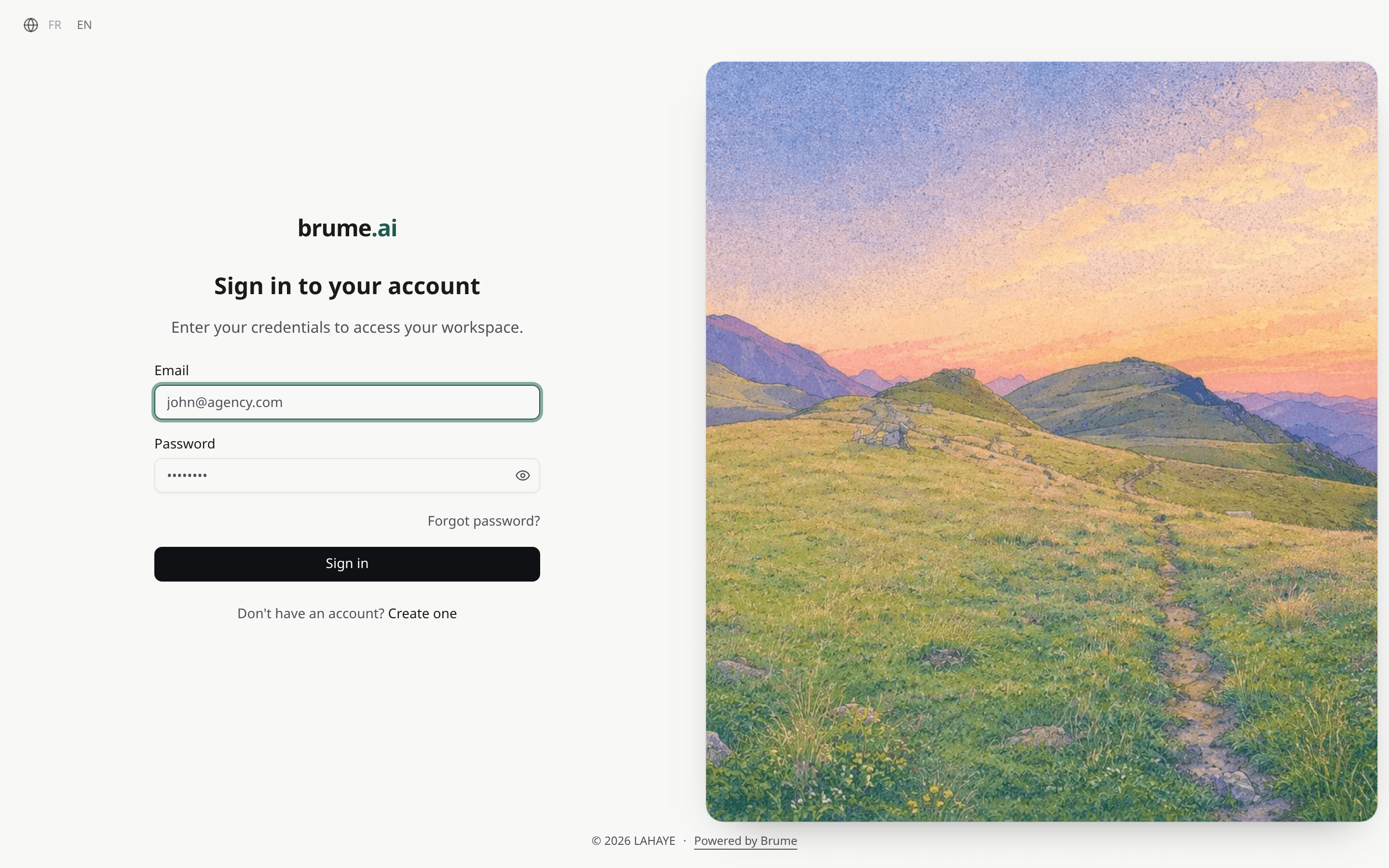
Enter your account email address.
Enter your password. Use the eye icon to check your entry.
Click Log in. Brume opens the current organization or your organization list.
Use Forgot password to receive a reset code. If you are founding the first organization on your instance, follow Commissioning instead.
Accept an invitation
The link sent by the organization opens a dedicated screen. It shows the organization—or workspace—you are joining and the invited email address.
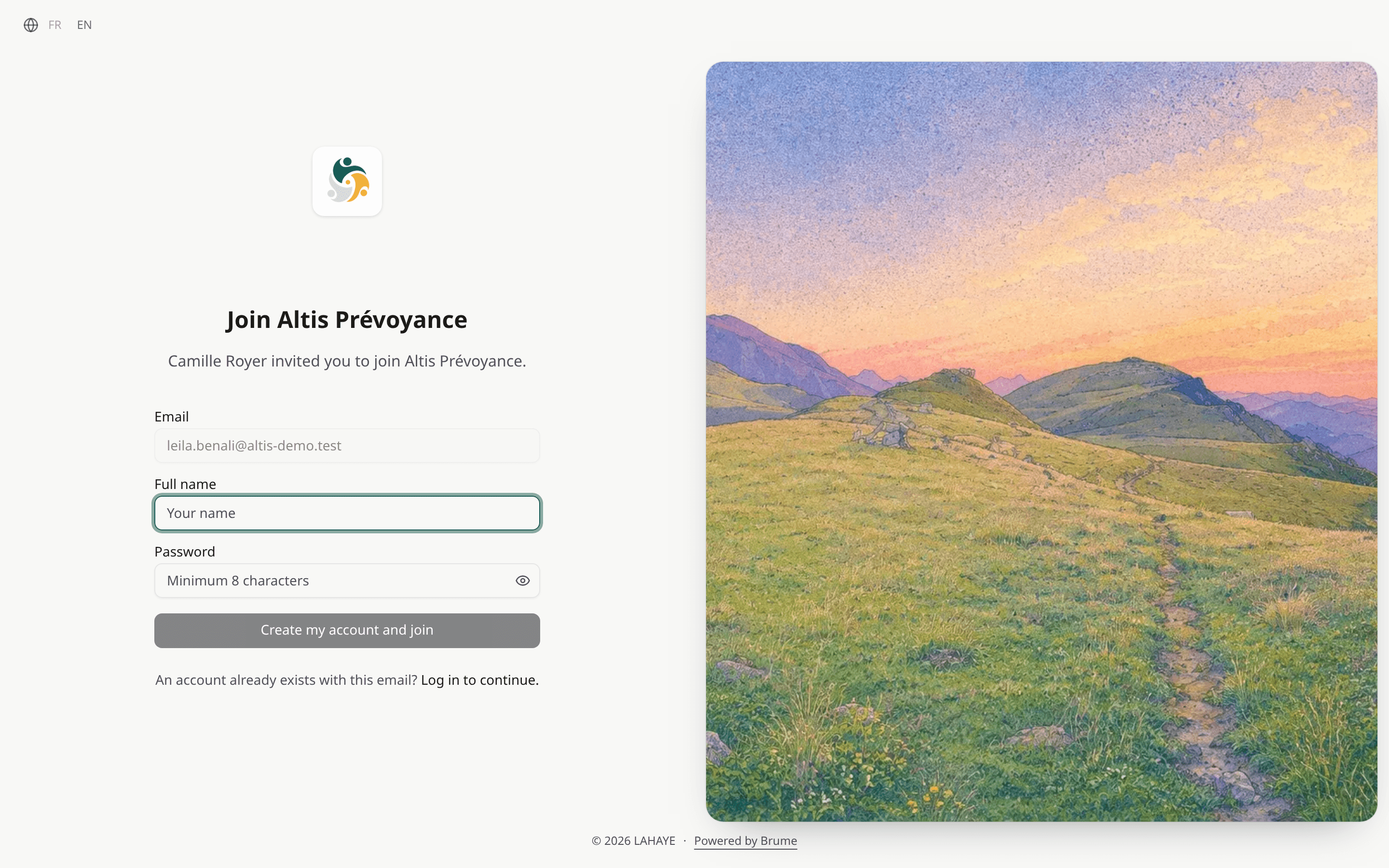
Create a new account
Open the invitation link. Check the organization or workspace name and the pre-filled email address.
Enter your full name.
Set a password of at least 8 characters.
Click Create my account and join. Brume creates the account, applies the access set by the invitation, and redirects you.
An invalid or expired link cannot be accepted. Ask the organization or workspace administrator for a new invitation.
Use an existing account
If an account already exists for the invited address, the screen asks you to log in. Use that same address and your password to continue the invitation flow.
Create your organization
Founding your organization on Brume Cloud: the invite code, the first account, the organization's name and address, then the setup assistant.
Find your way around the interface
The home screen after connection: sidebar, input zone, workspace selector and navigation differentiated according to your role.